![Pro Quick Draw Logo_Grey.png]](https://www.proquickdraw.com/hs-fs/hubfs/Marketing%20Photos/Pro%20Quick%20Draw%20Logo_Grey.png?height=40&name=Pro%20Quick%20Draw%20Logo_Grey.png)
How to use the Template Editor
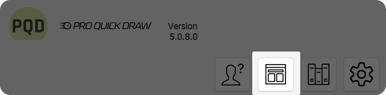
Open the Playbook panel on the ribbon bar and select the Template Editor
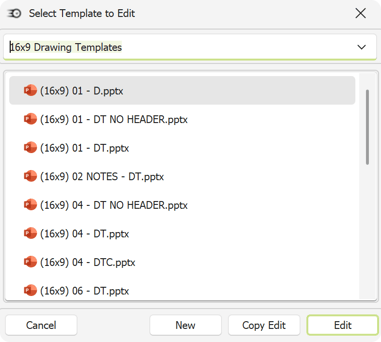
Select an existing template you would like to edit
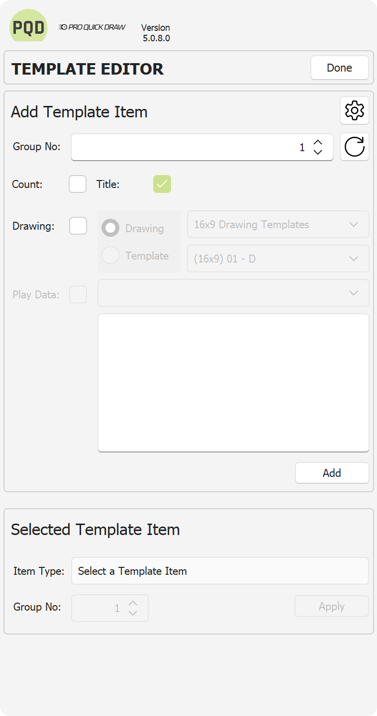
Here is a look at the new and improved Template Editor interface
How to Read Template Naming Conventions:
L: Landscape
P: Portrait
D: Drawing
DT: Drawing + Title
DTC: Drawing, Title & Count
Now lets cover each section of this new editor panel
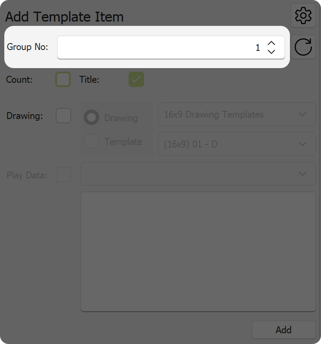
This is your Group No section - this allows you to align and combination of count, title and drawing together so when you are using this template and you add a play to it, the count - title - drawing will match with each play you add.
This is your configuration section to add the count, title and/or drawing section to this template. You would select which options you want to add and then click the Add button at the bottom and your selections will appear on the slide portion of PowerPoint
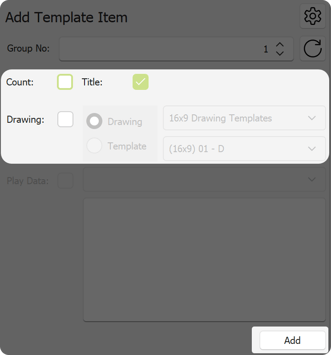
Here is a longer explanation of what each of these selections mean
Group No
Group No is short for Group Number. As you are customizing your template and working with the Add Box Shape you must associate a number with the area of the template you are customizing.
If you are working with your first drawing you want placed on the template, this would be Group No 1. If you are creating the location of the second Title you want placed on the template this would be Group No 2.
Tip: The Group No command should be attached to every command you create on the template.
Count
If you want to have page numbers on your template you need to build shapes and place the location of the page numbering through the use of this command.
Title
If you elect to have a title on your template this command is used to create that portion of your customized template.
Drawing
The "Drawing" command is one of the most frequently used features in the Template Editor. Regardless of whether you choose to include page numbering or a title box, it is essential to designate a space for each play drawing within your template. This command allows you to effectively create and position that drawing area for optimal display.
It is important to note that PQD Offers 3 Types of Templates to Customize as described in the drawings below:
Drawings Only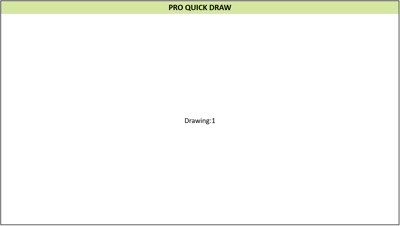
Drawings with Title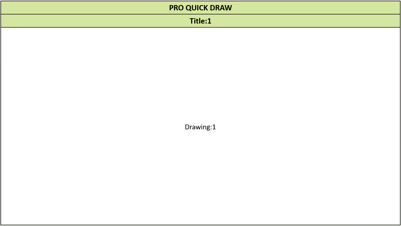
Drawings with Titles & Counts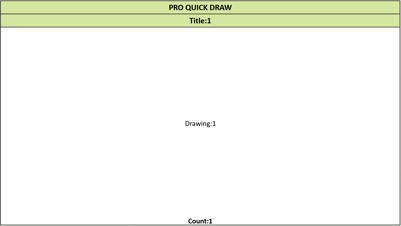
You now have the ability to modify the templates available in Pro Quick Draw or to personalize and save any existing template that you and your team currently utilize.
What's next? Click here to see how you modify a PQD template