![Pro Quick Draw Logo_Grey.png]](https://www.proquickdraw.com/hs-fs/hubfs/Marketing%20Photos/Pro%20Quick%20Draw%20Logo_Grey.png?height=40&name=Pro%20Quick%20Draw%20Logo_Grey.png)
What is it?
Play Editor is one of the most powerful products in the PQD portfolio. It allows you to create and use designed drawings and shapes to increase the speed and efficiency of play creation, playbook creation, scout cards and really any facet of your preparation. It is a very dynamic product that allows a level of customization you have never seen before.
Why does it matter?
Play Editor allows you to create an endless numbers of drawings to make you be the true owner and designer of your workflow and what works best for you. It does not box you in to certain workflows and designs that may not work for you. You have full control with Play Editor.
How does it work?
Menu Bar
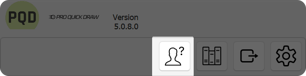
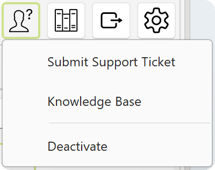
This is the Support button - where it allows you to Submit a support ticket, a link out this knowledge base and also to deactivate the product/license
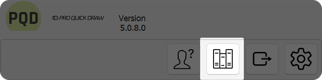
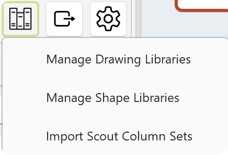
This is the Libraries button - where you can manage your drawing/shapes libraries and also import scout column sets from a spreadsheet
This is the Export button - this is where when you are done using play editor to design and draw up all of your plays/scheme you can then export to the Playbook library for continuous use later on
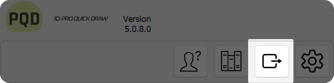
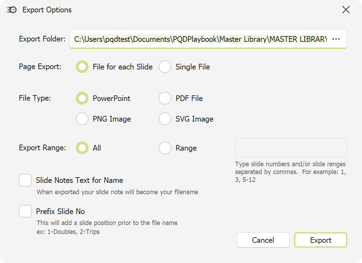
You would then choose the file directory where your playbook library is located, and then subfolder, for example, Offense - Formations or Alignments or Pass Protections.
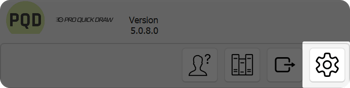
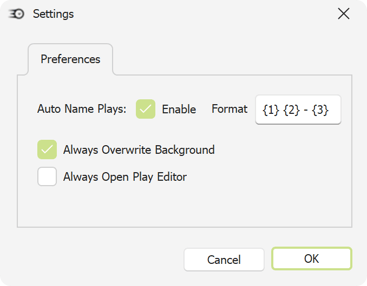
This is the Settings button - this give you options like using a format to auto name your plays, always overwrite background or to always open play editor when PowerPoint is opened.
Drawings
Here is the primary window for play editor - you will notice two tabs, drawings and shapes. We will first talk about Drawings. The first item is the drop down menu here showing PASS GAME (16x9) Drawings. This was installed due to the install package you installed during setup. The drop down is there because you can install multiple drawings packages.
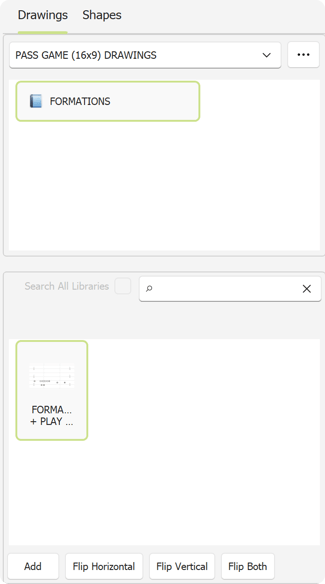

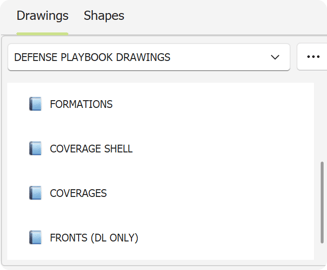
Next you will see the 2 large white boxes, 1 on top and 1 on the bottom. The top box shows your package folders for example Formations, or if I were to click on my Defense Playbook Drawings, it would show things like Coverages, Formations, Coverage Shell, Fronts etc.
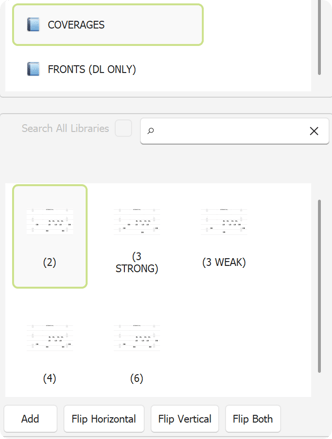
The box on the bottom will of course show the items within those folders. For example once I click on Coverages on the bottom I can see Cover 2, Cover 3 Strong, Cover 4 etc. These are pre-drawn sets that you can drop onto your slide to begin building out your design. You dont have to stick with that we have here. You can edit these to fit your scheme and also create new items here to add even more to it giving you the ultimate control.
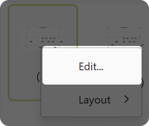
If you want to edit any current drawings or add your own you can either right click on the Folder being used in the top selection box or right click on one of the drawings in the bottom selection box and choose Edit Library or Edit
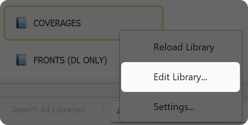
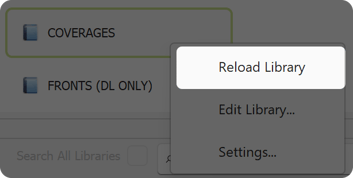
Now if you do make an edit you will want to right click on the main folder, in this example Coverages and select Reload Library, then on the bottom you will see the additions/removals you made to that Library
Lastly on this part the settings button if you right click on a folder within the library and choose Settings
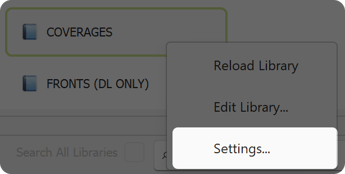
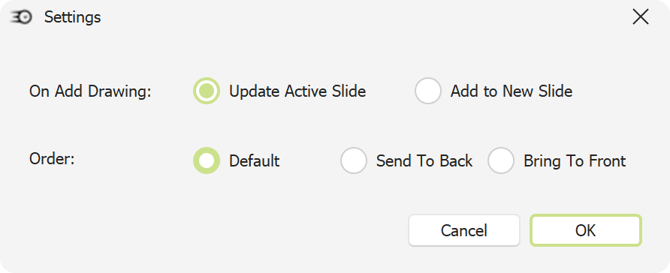
You will see this Settings window
On Add Drawing - Update Active Slide will add that drawing to the slide you are currently on in your presentation and Add to New Slide will create a new PowerPoint slide and add it there, so depending on what and how you are trying to build those settings become crucial.
For example the Update Active Slide you can add a drawing from your FRONTS (DL ONLY) library to get your front right, then you may add a drawing from your coverages to create your new base for the week. When you leave it on update it will actually layer those drawings to create a single complete play.
But if you had Add to New Slide create when I chose to add my coverages it would have just put the coverages on a brand new slide. So you would have a slide with the FRONTS only and then another slide with Coverages only.
Last piece of the main Play Editor window are the buttons at the bottom which control the drawing or shape you are placing on the slide

Add - This button simply adds the drawing or shape to the slide
Flip Horizontal - Lets say you are flipping a formation from the right hash to the left hash, you dont need to draw a whole new play you simply add the same one you click Flip Horizontal, it will then add and flip that drawing
Flip Vertical - This option is the exact same as flip horizontal but it flips vertically. This comes in handy when you are dropping shapes onto a slide and you want to place the shapes on one side of the field and then the other based on the direction of your drawing
Flip Both - This button will take that drawing and/or shape and add it to your slide but flipping it both horizontally and vertically
Shapes
Now of course by design and it being in the same product of Play Editor the Shapes tab has the exact same look/feel/functionality
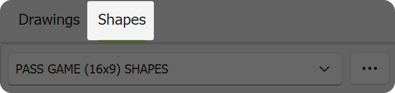
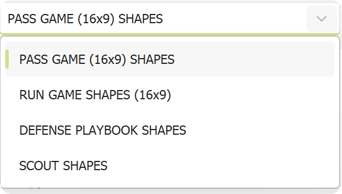
You can have multiple Shapes Libraries installed as you can see in the images below
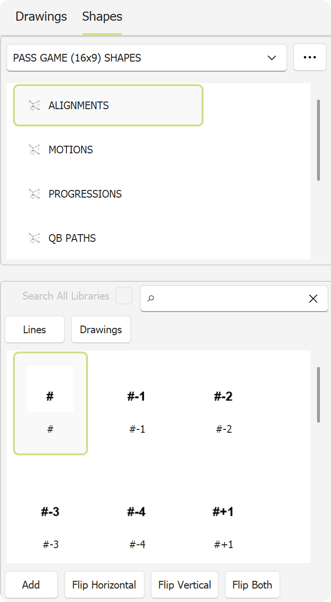
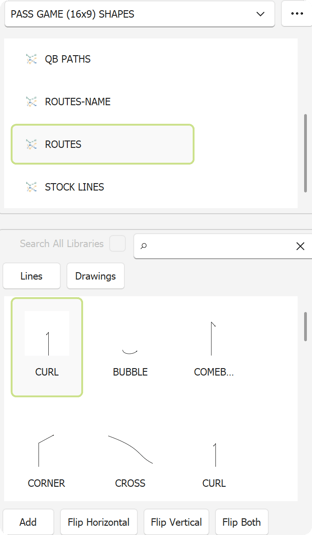
Here I chose the Routes folder in the library and you can see the shapes on the bottom are simple route shapes that you can use
Now when you switch from Drawings to Shapes you have a few new buttons - Lines and Drawings
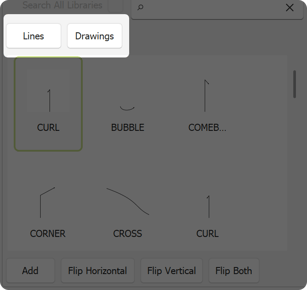
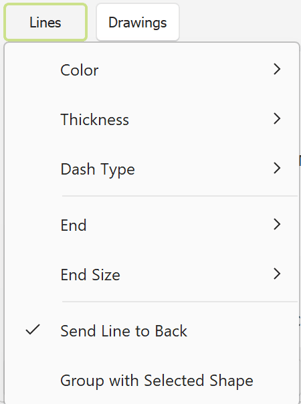
Lines - This menu gives you the ability to alter the color, thickness and type of line. So if you want your route line color to match the color of the playing icon running that route you can make that change. You can also change the end cap on the line whether its an arrow, circle, diamond etc. You can also choose to send the line to back of all shapes or even group that with another shape for easier moving of items on screen
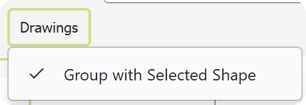
Drawings - This allow you to group the drawing itself with a selected shape
For a more in-depth look at how to use Installation Packages and Play Editor when it comes to your tasks, we have created actual workflows that leverage this product in its full capacity. They are also in our knowledge base under the Advanced Workflows section. Here are a few linked for easier access.
Installation Packages Overview
Installation Packages: Scout Cards
Installation Packages: Pass Game 16x9
Installation Packages: Run Game 4x3