![Pro Quick Draw Logo_Grey.png]](https://www.proquickdraw.com/hs-fs/hubfs/Marketing%20Photos/Pro%20Quick%20Draw%20Logo_Grey.png?height=40&name=Pro%20Quick%20Draw%20Logo_Grey.png)
Click Here to view our YouTube Playlist on how to use the Defensive Playbook Installation Package
What does it include?
Drawings:
Formations: Drawing Library - use this to create all of the formations for your playbook that is used as the foundation to create your Defensive Playbook File Library
Fronts (DL Only): Drawing Library - use this to create all of the defensive Fronts (DL Only) for your playbook that is used as the foundation to create your Defensive Playbook File Library. This file only contains defensive linemen because the linebackers will be in the Coverage Alignments/Responsibilities Drawing Libraries.
Coverage Alignments: Drawing Library - use this to create all of the defensive Coverage Alignments for your playbook that will serve as the foundation for your Defensive Playbook File Library. Keep these clean and simple, showing only how you would align in each coverage. This is players only—no lines or responsibilities. These drawings can be used to assist drawing run fits and as a shell to build out new Coverage Responsibilities.
Coverage Responsibilities: Drawing Library - use this to add specific coverages that has grouped lines to make it easier and faster to manipulate players and their responsibilities.
Hit Chart Formations: Custom slide size to create a hit chart formation report with number of snaps/runs/passes.
Shapes:
Alignments: Text box when added to a selected player, will display the location of the player on the field. (#-1)
Blocks (Dots): Pre-built run blocking shapes where the endcap is a dot. This allows a user to easily manipulate the shape to fit it on the diagram exactly where needed. To made an adjustment, add the shapes, right click and select Edit Points to place the block where needed. These are single line or single freeform objects. This should be used to assist with drawing Run Fits.
Blocks: Pre-built run blocking shapes where the endcap is a flat line shape. (Do not adjust the size of the endcap.) RIGHT CLICK ON BLOCKS, SELECT SETTINGS, SELECT UNGROUP ON ADD. This will enable to you made adjustments more easily. These are grouped objects with the endcap. PowerPoint does not offer a line endcap so we have modified lines & shapes in order to accomplish this look. This should be used to assist with drawing Run Fits.
Defensive Paths: Combination of pre-built defensive movements and coverage responsibilities.
Defensive Terms: Common defensive terms that can be used to add below a defender to assist with the player's responsibility. Coaches are able to change the text boxes to match their terminology.
Hit Charts: Use the Run/Pass # shapes to add a run concept, and change the # to the amount of snaps that play was run.
Zone Scheme: Blocking shapes that have been created to be used when drawing a zone blocking scheme. This includes double teams and lines to represent blocking to the 2nd level.
Gap Scheme: Blocking shapes that have been created to be used when drawing a gap blocking scheme. This includes double teams and lines to represent blocking to the 2nd level.
The PQD Block libraries and shapes are built from a Field to Boundary perspective. The drawings are built to where the ball is on the left hash and the field is to the right. The blocks are built to where the run scheme is going towards the field, or to the right if the ball is MOF. If you add a drawing and flip it to where the ball is on the right hash, the blocks will also need to be flipped to match this concept. Best practice is to draw from field to boundary, if the ball is in the middle, draw from right to left.
.png?width=655&height=369&name=image%20(5).png)
Motions: Pre-built lines when added to a selected player will show the pre-snap movement
QB Paths: Pre-built lines to show the path of a QB
RB Paths: Pre-built lines to show the path of a RB
Shades: Shapes used to identify defensive front alignment. Select the offensive player and then add the shape.
Stock Lines: Pre-built lines & freeform objects that will allow a coach to select the object and begin drawing with a default line/shape. (Solid/Dashed lines, dots, ovals, arrows)
To use this feature, right click a shape within the Shape Library and select "Set as Default Line or Shape" and then go to the drawing tools on the ribbon. If you're using a line, select a line. If you're using a freeform shape, select the freeform drawing tool.
How does it work?
- Right Click Fronts (DL Only) and select Edit Library
- Edit the style of your drawing: Change the player text colors, font, DO NOT CHANGE THE SIZE OF THE PLAYERS
- Align the players on the screen to create your first front
- Name your front at the bottom of the screen within the Notes section
If you do not see this section, click on the "Notes" button at the bottom of the PowerPoint Screen - Once your first front is completed, right click on the thumbnail of the slide in the menu on the left and select Duplicate Slide. You can also do this using the shortcut "Ctrl+D" after selecting the slide thumbnail
- Create the rest of your Fronts.
- REMOVE THE OFFENSIVE LINE FROM ALL OF THE DRAWINGS. Only the defensive players and shades (if added) should remain.
- Once completed, save the file and close.
- Right click on Fronts (DL Only) and Select Reload Library
- Right Click Coverage Alignments and select Edit Library
- Alignments are used to help coaches build a coverage shell as they create new coverage responsibilities. During the season you may want to build a new pressure or run fit diagrams, use the alignments drawings as a starting point.
- Edit the style of your drawing: Change the player text colors, font, DO NOT CHANGE THE SIZE OF THE PLAYERS
- Align the players on the screen to create your first coverage alignment.
- Name your Coverage at the bottom of the screen within the Notes section
If you do not see this section, click on the "Notes" button at the bottom of the PowerPoint Screen - We suggest building five slides with these coverages: (2), (3 Strong), (3 Weak), (4), & (6). Having these five coverages will assist you when you begin to create your Coverage Responsibilities.
- Example File Names: (2), (3 WEAK), (4), (4 CHECKS)
- Once your first coverage alignment is completed, right click on the thumbnail of the slide in the menu on the left and select Duplicate Slide. You can also do this using the shortcut "Ctrl+D" after selecting the slide thumbnail
- Use this process to continue to create the rest of your Coverage Alignments.
- Once completed, save the file and close.
- Right click on Coverage Alignments and select Reload Library
- Right Click on Coverage Responsibilities and select Edit Library
- This drawing library is what you will use to create the coverages that go with the fronts against a formation drawing. You will use the pre-built lines and grouped shapes to move the players.
- Edit the style of your drawing: Change the player text colors, font, DO NOT CHANGE THE SIZE OF THE PLAYERS
- Align the players on the screen to create your first coverage responsibility.
- Name your Coverage at the bottom of the screen within the Notes section
If you do not see this section, click on the "Notes" button at the bottom of the PowerPoint Screen - As you get more comfortable with this process you can build an extensive library against concepts: Cover 4 vs 2x2 TE attached, Cover 4 vs 2x2 TE detached... The goal is to build an extensive drawing library that can be layered with the Fronts drawing library.
- Once finished, save and close this file.
- Right click on Coverage Responsibilities and select Reload Library
- Right Click "Formations" and select Edit Library
- Edit the style of your drawing: Change the player fill colors, font, DO NOT CHANGE THE SIZE OF THE PLAYERS
- Align the players on the screen to create your first formation
- Name your formation at the bottom of the screen within the Notes section
If you do not see this section, click on the "Notes" button at the bottom of the PowerPoint Screen - Once your first formation is completed, right click on the thumbnail of the slide in the menu on the left and select Duplicate Slide. You can also do this using the shortcut "Ctrl+D" after selecting the slide thumbnail.
- Create the rest of your formations.
- Once completed, save the file and close.
- After you have edited the previous four libraries, go to the Settings Icon within the Play Editor Menu
- Within preferences, enable the Auto Name Plays function and set the format as:
{1} {2} - {3}
Example: Over (4) - Pro King.pptx
This will name the files in the notes section as you build your diagram using the drawing libraries for Fronts (DL Only), Coverages & Formations. - You have the option to Always Overwrite Background. When adding a drawing the background will be replaced with the background in the drawing. If unchecked, this will default to the current slide background.
- Always Open Play Editor: Enable this to always open the play editor menu when you use PowerPoint.
- Within preferences, enable the Auto Name Plays function and set the format as:
- Within the drawing section, click the 3 dots to the right
- Reorganize the Drawing files in the order that fits your drawing preferences by dragging and dropping.
- We suggest the following order:
- Fronts (DL Only)
- Coverage Alignments
- Coverage Responsibility
- Formations
- Right Click "Fronts (DL Only)" and select Settings
- On Add Drawing: Select Add to New Slide. Each time you select a drawing it will create a new slide
- Order: Default
- Click OK and close
Using Play Editor Drawings to create your Files for the Master Library
- Open a new Presentation
- Add a front from your Fronts (DL Only) Drawing
- Add a Coverage Responsibility from the according drawing library
- Add a Formation
- You will see the file name at the bottom has been created automatically from the drawing libraries
- Generate your files using the export function and place them in the appropriate folder.
Master Library Contents: Pre-Built folders to organize your entire defensive playbook from Opponent Breakdown to your Defensive Scheme.
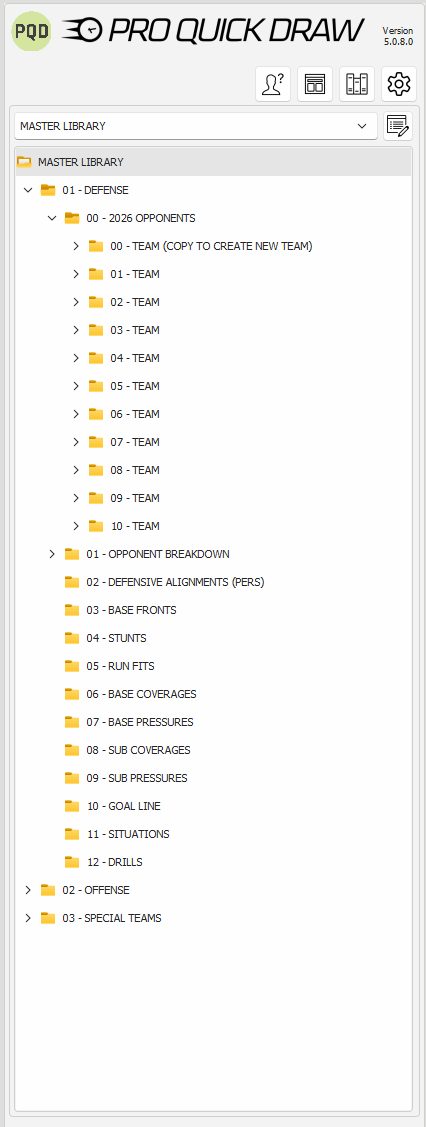
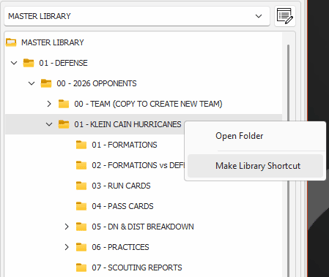
In the Master Library, for the opponent you are playing that week, right click on their team name, and select Make Library Shortcut. This will add the folder as a dropdown above your library and you can toggle back and forth between folders quickly.
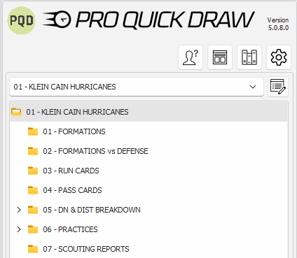
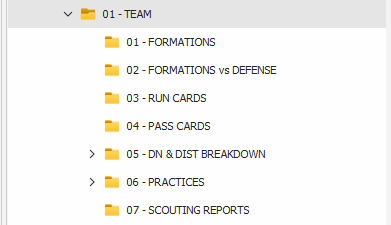
- 00 - Team Folder: This is the "default folder". If you want to make any changes, make them within this folder. Then copy and paste this folder and rename to match your schedule and delete the 01 - 10 Team folders we have created.
-
- 01 - Formations: Build the specific opponent formations from your Formations Drawing Library and export them here.
- 02 - Formations vs Defense: Using the formation drawings, add your defensive fronts & coverages that you will use for the week and save them in this folder. These drawings can then be used to create all of the Run Cards & Pass Cards
- 03 - Run Cards: Save all of the Run cards in this folder so you can search and add to the scout card template to create your practice cards.
- 04 - Pass Cards: Save all of the Pass cards in this folder so you can search and add to the scout card template to create your practice cards.
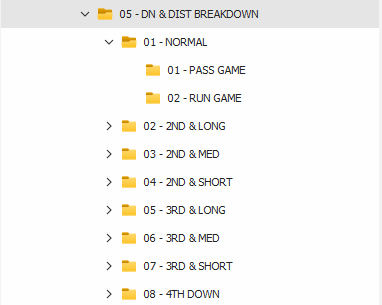
- 05 - Down & Distance Breakdown: These are pre-built folders to establish the breaking points for each Down. Each folder has two sub-folders for runs & passes. Save the specific run/pass diagrams into each folder to easily pull for your practice during these specific practice periods.
-
- 06 - Practices: Use these folders to add final documents such as practice scripts and/or drawings to stay organized for the week. An example could be a folder for the WalkThru period and save the drawings in a folder called WalkThru nested under the Practice 01 Folder.
- 07 - Scouting Reports: Use this folder to save presentations that are all related to scouting reports.
- Examples: Offensive Depth Chart, Top Formations, Top Runs, Top Passes, 3rd Down Passes, Red Zone Concepts
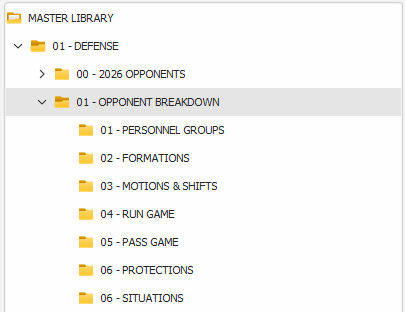
- Opponent Breakdown: Offensive definitions that you can use to define terms for your staff and players. Use this to create a guide on how to breakdown film.
- Personnel, Formations, Motions & Shifts, Run Concepts, Pass Concepts, Protections
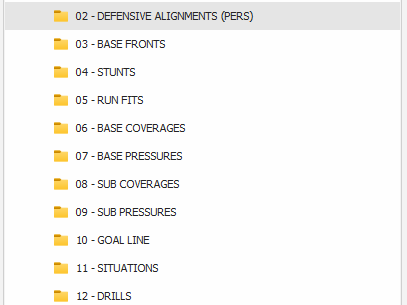
- Defensive Playbook: A combination of installation documents that involve fronts, base coverages, sub coverages, situations.
Links To Other Articles:
Learn how to use the Defensive Playbook Shapes within the following articles. *COMING SOON*
How to Create Opponent Formations for the Week
How to Draw Run Fits
How to Draw Pattern Match