![Pro Quick Draw Logo_Grey.png]](https://www.proquickdraw.com/hs-fs/hubfs/Marketing%20Photos/Pro%20Quick%20Draw%20Logo_Grey.png?height=40&name=Pro%20Quick%20Draw%20Logo_Grey.png)
What is it?
Using the Edit feature on the ribbon bar allows to you change the selected drawing file with an updated version
Why does it matter?
This allows you to quickly change items, like moving a players alignment or change the color of a players icon
How does it work?
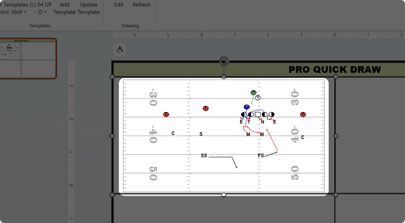
Once a drawing is added to a template, single click on the drawing
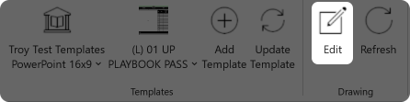
Click the Edit button on the Pro Quick Draw ribbon bar
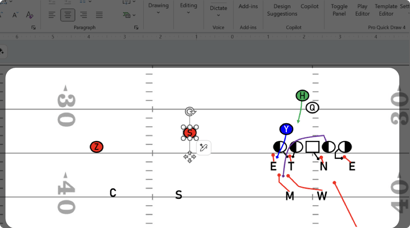
A new PowerPoint window will open with your drawing, make the necessary changes and save your file
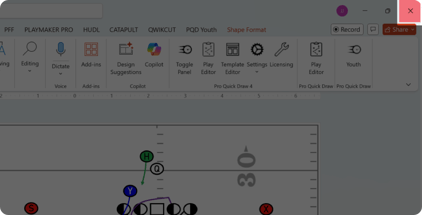
Click the X in the upper right hand corner to close the window
You have now successfully edited your drawing
What is next?
Now that you have edited a drawing within your template, if you are unsure if that drawing now in your template is the most recent version click the link below to learn how to refresh your drawing