![Pro Quick Draw Logo_Grey.png]](https://www.proquickdraw.com/hs-fs/hubfs/Marketing%20Photos/Pro%20Quick%20Draw%20Logo_Grey.png?height=40&name=Pro%20Quick%20Draw%20Logo_Grey.png)
What is it?
Your play library is a collection of drawings/plays that can be used to build out your install or playbook.
Why does it matter?
Managing and organizing your play library is crucial to your workflow and to create efficiences to get you back on the field coaching in record time.
How does it work?
Panel Overview
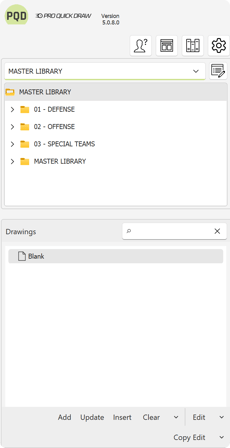
This is the entire Playbook Panel for PQD - we will break each section down independently
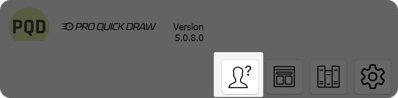
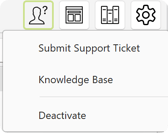
This is the Support Menu where you can submit a support ticket, open the knowledge base or deactivate the product
This is the Template Editor button where you can select a template to edit, copy a template to edit so you don't lose a PQD supplied template or create a brand new template from scratch
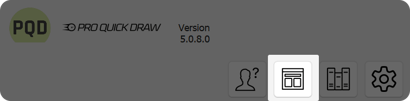

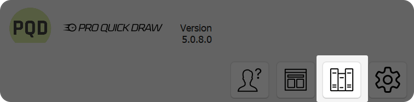
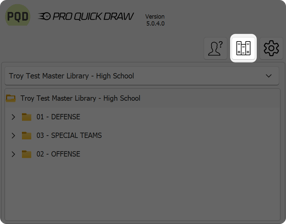
This is the Libraries button where you can manage your play libraries, manage your template libraries or install more packages supplied by PQD for your role in the product
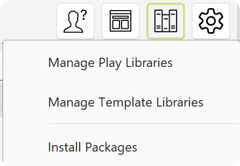
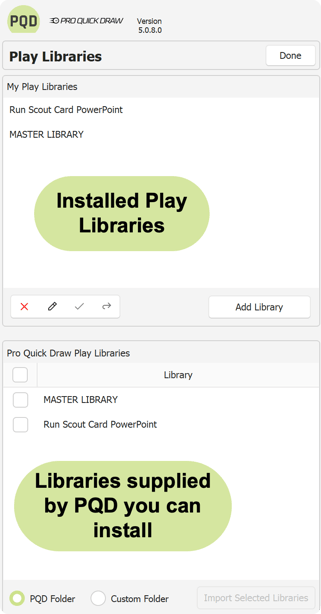
If you were to Manage your Play or Template Libraries you will be prompted with another panel, here you will see the play library and template library panels side by side
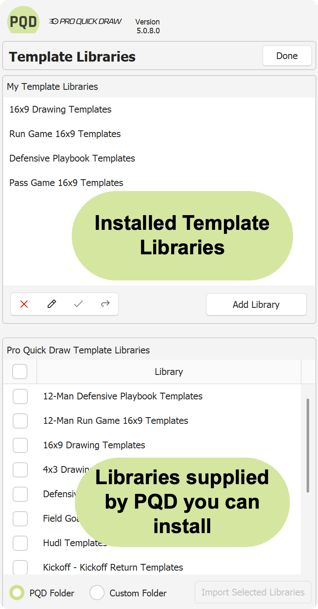
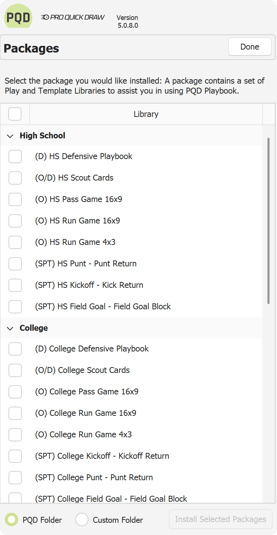
If you choose Install Packages you will see another panel with MANY different packages available for install. An install package is a set of templates, drawings and shapes needed for the named package to assist you in getting back to work faster.
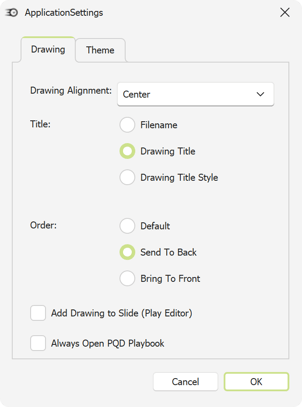
The Settings button allows you to alter and customize your PQD install settings - things like on the Drawing tab your Drawing Alignment, Title and Order. You can also choose to Always Open PQD Playbook when you open PowerPoint which saves you a step.
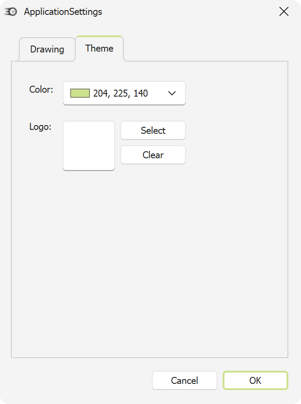
Now on the Theme tab this is where you can really customize the look and feel. You can change the color scheme in PQD to match your team colors and also replace the PQD logo with your team logo for a full custom look.
This section shows you your play library folder structure which also gets installed with an install package and the plays within those folders. These are the plays you would add to a template for your presentation
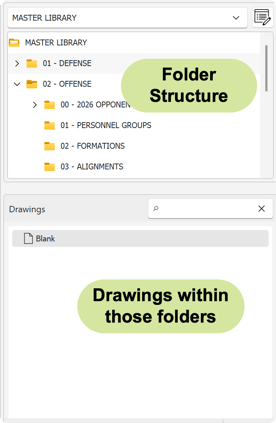
The Play Library dropdown gives you the ability to access multiple play libraries
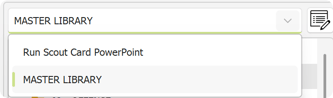
Lastly we have the action buttons at the bottom of the Playbook Panel - this provides all of the actions needed to add your plays to a template on a slide, update already existing plays on the template, insert them into a specific place on a template, clear that play from the template also edit and copy edit, which would open up that specific play PowerPoint file to make your changes and overwrite the play itself.

Import Play Library
Click on the Libraries button
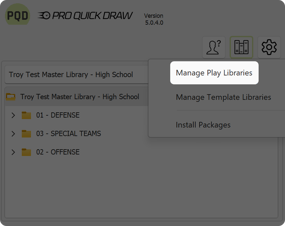
Select Manage Play Libraries
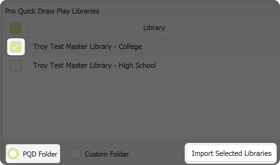
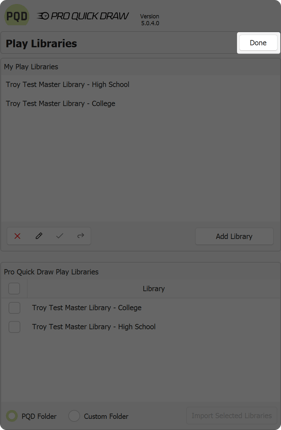
Under Play Libraries you will have 2 choices. Add your own library or install a PQD created play library - we will be choosing from the Pro Quick Draw Play Libraries
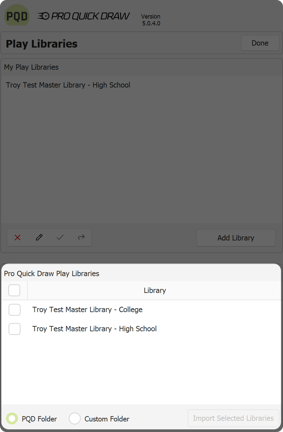
Check the box next to the play library you wish to install and click the Import Selected Libraries button
Once imported click Done in the upper right
What is next?
Now that you have play libraries imported, click the link below to see how to install and manage your template libraries so you can begin building your playbook and presentations.