![Pro Quick Draw Logo_Grey.png]](https://www.proquickdraw.com/hs-fs/hubfs/Marketing%20Photos/Pro%20Quick%20Draw%20Logo_Grey.png?height=40&name=Pro%20Quick%20Draw%20Logo_Grey.png)
Download from Pro Quick Draw Website
Download from Admin Dashboard
Once you are logged into the dashboard (dashboard.pqdcloud.com) select Download on the left navigation menu
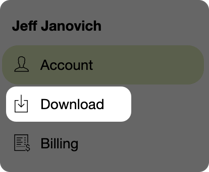
On the Download page you may have multiple downloads available based on what you or your team purchased - to download PQD click the Download button on the Pro Quick Draw page item

This will download the installation file to your computer to then go ahead and install.
Installation
Open the installer that was just downloaded
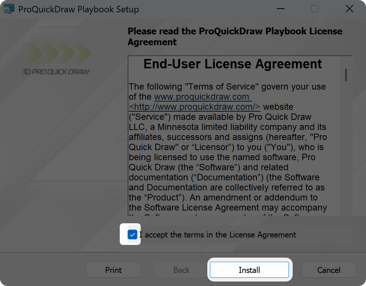
Select the box to accept the terms in the license agreement and click Install
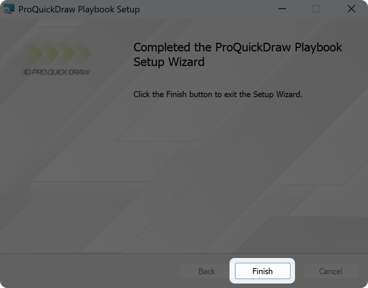
Once the installation is complete click Finish
Initial Configuration
Now that your installation is finished open up PowerPoint or Visio, start a new presentation and click on the Playbook button on the ribbon bar - PQD will then load
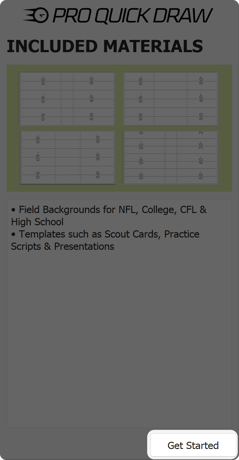
Click Get Started
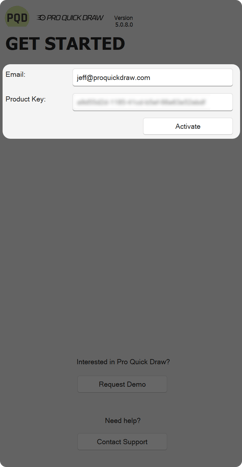
Enter your email address and product key, then click Activate
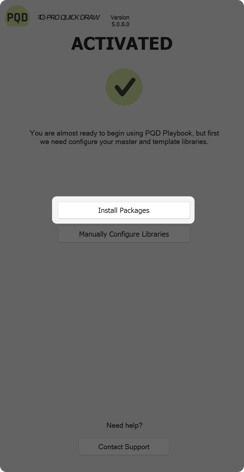
Click Install Packages
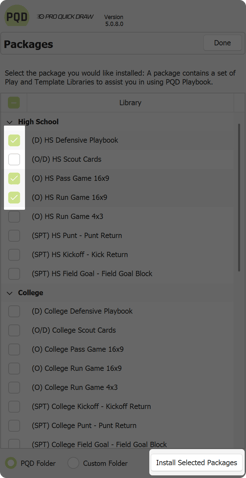
Select your install packages that pertain to the job you will be doing and click Install Selected Packages
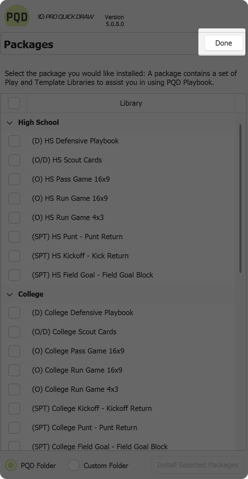
Once the packages are installed you can click Done
Click Start
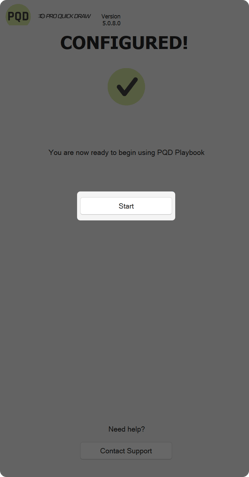
The install and initial configuration is now complete and you are ready to start using Pro Quick Draw!