![Pro Quick Draw Logo_Grey.png]](https://www.proquickdraw.com/hs-fs/hubfs/Marketing%20Photos/Pro%20Quick%20Draw%20Logo_Grey.png?height=40&name=Pro%20Quick%20Draw%20Logo_Grey.png)
What is it?
This article will cover how to change your Pro Quick Draw password
Why does it matter?
Password management is important for any service or software you purchase. Below you will see steps on how to change your password or assist a coach in resetting their password to ensure your staff can access the dashboard or activate PQD.
How does it work?
Account Owner
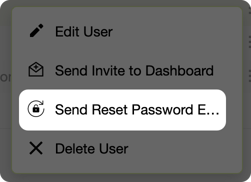
Under the users section of the Dashboard Account page select the 3 ellipses next to the user that you want to reset

Select Send Password Reset Email from the menu
Click Yes on if you want to send the reset email to that user
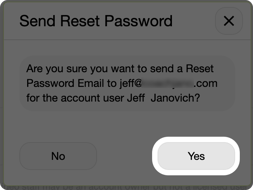
The user will not be sent an email that will walk them through resetting their PQD password securely
User Self-Service
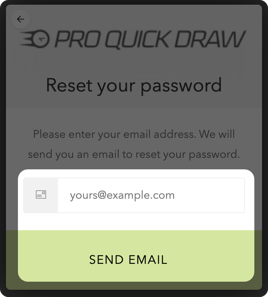
At the Dashboard login screen click on the Don't remember your password? link below the password text box

Enter your email address and click Send Email
You will receive an email, in the email click on the Change Password button

You will be taken to a new browser window where you can input your new password, you must type it a second time to confirm and then click the arrow button to proceed
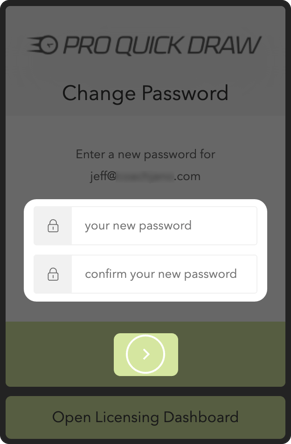
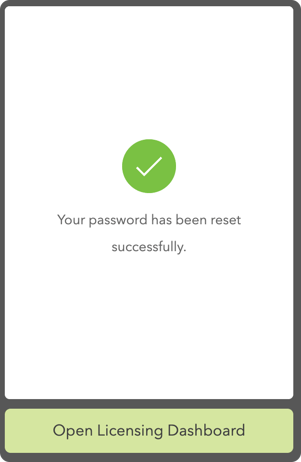
You will then receive a message stating your password has been reset successfully and you can open the licensing dashboard
What is Next?
Now that passwords are taken care of, it may be time to refresh a license for a re-imaged machine or because you got a new computer. Click the link below to see how to generate or refresh a license