![Pro Quick Draw Logo_Grey.png]](https://www.proquickdraw.com/hs-fs/hubfs/Marketing%20Photos/Pro%20Quick%20Draw%20Logo_Grey.png?height=40&name=Pro%20Quick%20Draw%20Logo_Grey.png)
Click Here for One Drive Instructions
GOOGLE DRIVE
- Click the link below to download Google Drive for Desktop
Install Google Drive for Desktop
- Open your Downloads section of your File Explorer and run the installer.
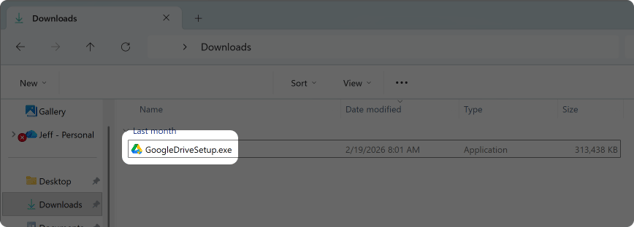
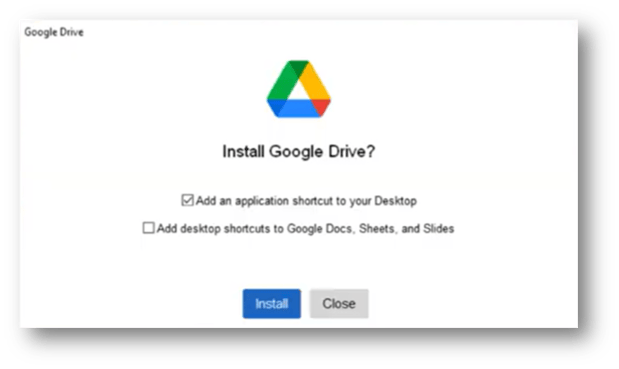
- Select Yes to the first menu and make sure you click the checkbox for Add an Application Shortcut on the second menu.

Caution: If you were given this message when trying to run the installer for the Google Drive Shortcut follow the instructions in this article and then return here.
How to Share File Access if you're using Google Drive
- PRO TIP: Before moving your folder to a share drive to disperse to your staff, under the PQDPlaybook and Play Library folder, rename the MASTER LIBRARY folder with your school name or abbreviation. This will help ensure everything is using the team playbook that you are sharing and not a base install library. If you are sharing custom template, drawing or shapes libraries we would highly recommend doing it to all of them.
- Check to make sure that the Google Drive App is not already installed on your computer by searching in your windows search at the bottom of your computer.
- Split screen your desktop with one side as Google Drive in your browser and the other as the Documents folder in your File Explorer.
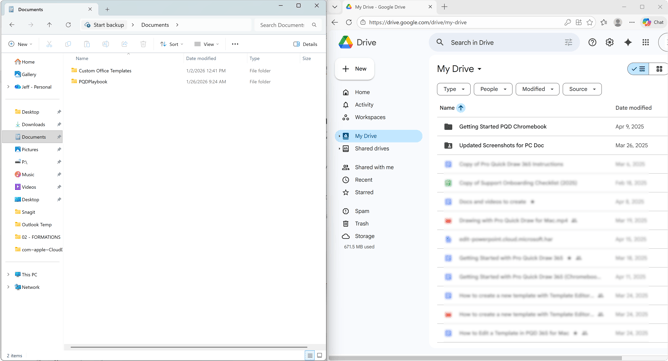
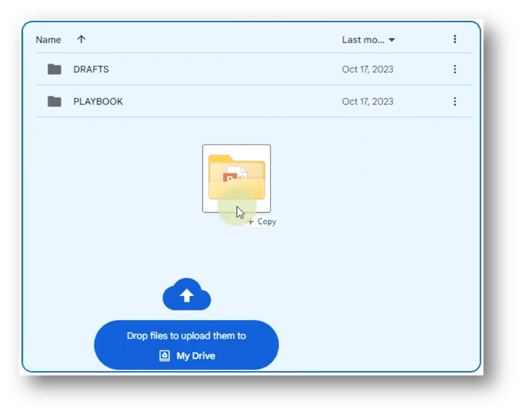
- Click and drag the PQDPlaybook folder into your Google Drive in My Drive.
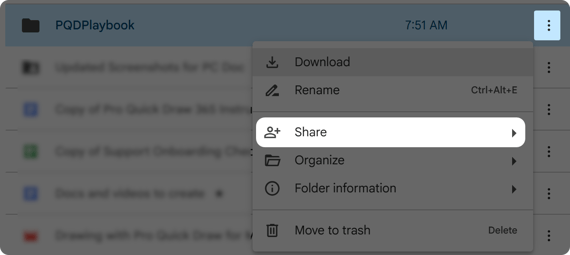
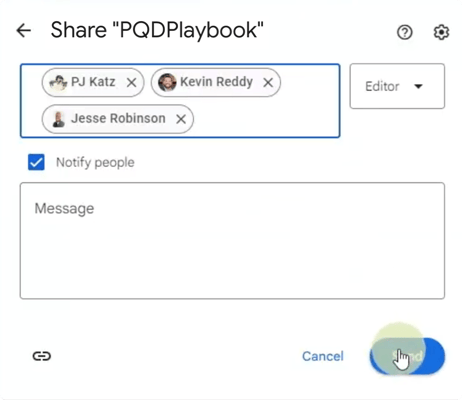
- Select the 3 dots to the right of the PQDPlaybook folder and hit Share to add the emails of the coaches that you want to have have access to these files. Press Send.
Ensure everyone is using the Shared Master Library by adding it to PQD
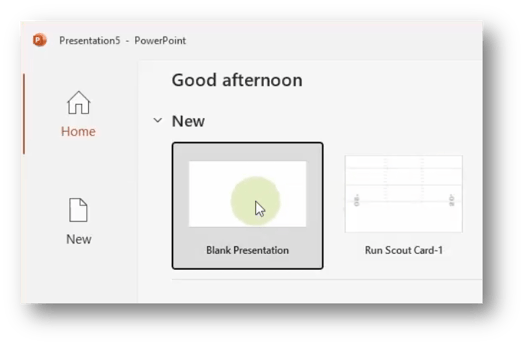
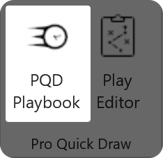
- Then everyone will open a Blank Presentation in PowerPoint and go to PQD Playbook in the right of the Home tab.
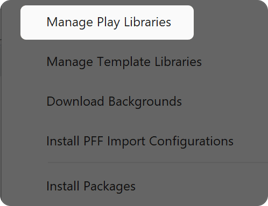
- Once PQD Playbook opens, click on the Libraries button and choose Manage Play Libraries

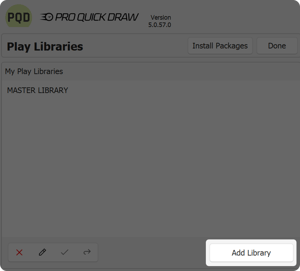
- Click Add Library
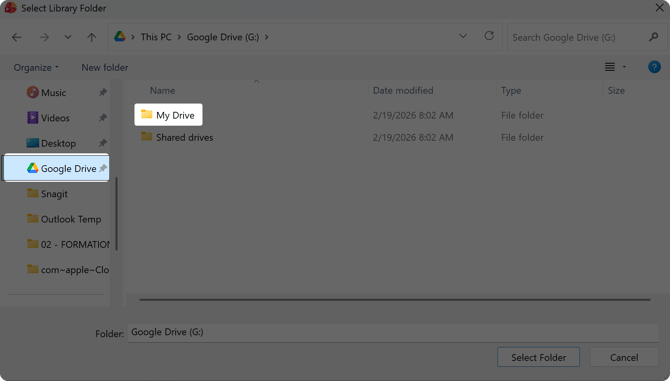
- Once the Select Library Folder window opens, navigate and select Google Drive in the navigation pane on the left, then double click on My Drive.
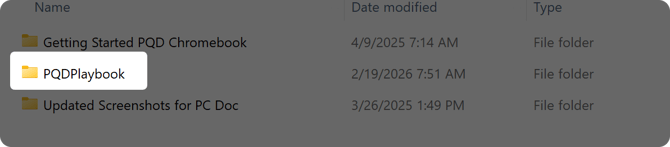
- Double click on PQDPlaybook
- Double click on Play Library
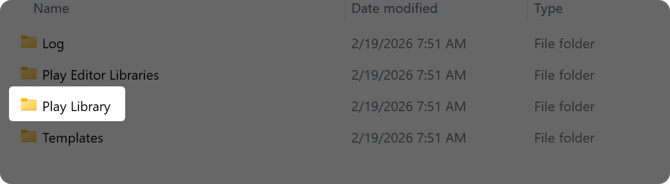
- In this next step, if instructions were used above to share, you should be seeing a school named folder here to add to differentiate from any base PQD install library
- Single click (select) the Library you are looking to add and then click Select Folder button
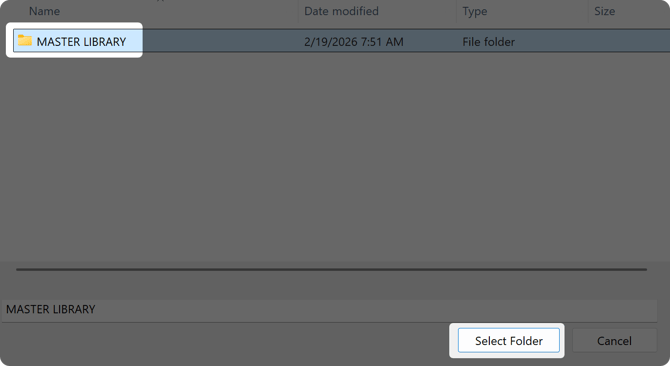
- Click Done
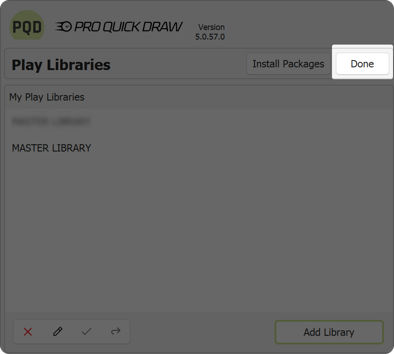 t
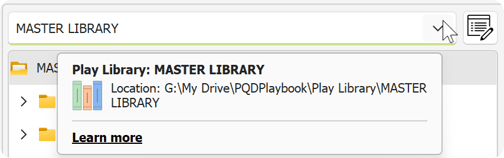
t - Then select the proper library from the dropdown menu, if you have multiple. You can confirm by hovering over the dropdown - confirming this library is in your google drive
Ensure everyone is using the correct Shared Templates by adding it to PQD
Following these steps in order, Google Drive Desktop should already be installed and the Coach sharing these templates to staff has already shared. If this hasn't occurred please scroll up to the sharing section. These next steps will show how other staff members can add the shared template library to their PQD installation
- Then everyone will open a Blank Presentation in PowerPoint and go to PQD Playbook in the right of the Home tab.
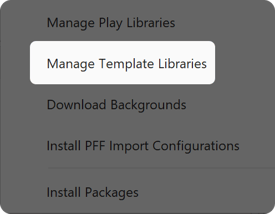
- Once PQD Playbook opens, click on the Libraries button and choose Manage Template Libraries
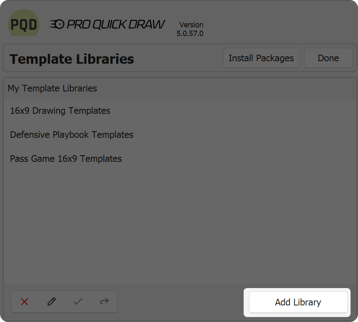
- Click Add Library
- Once the Select Library Folder window opens, navigate and select Google Drive in the navigation pane on the left, then double click on My Drive.
- Double click on PQDPlaybook
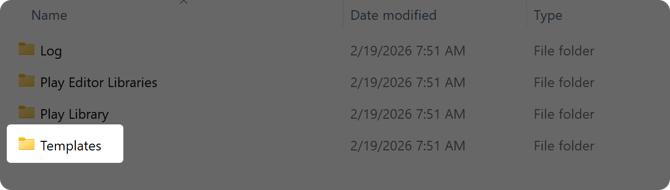
- Double click on Templates
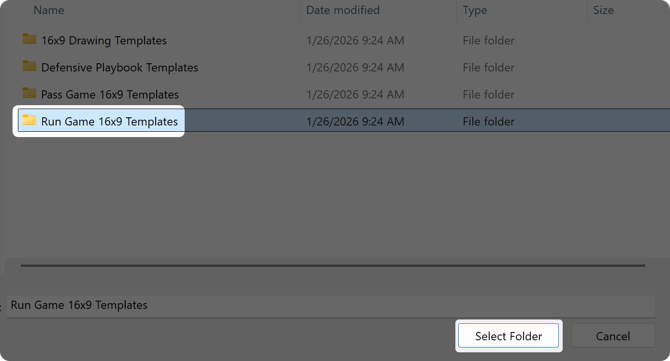
- Single click (select) the Templates you are looking to add and then click Select Folder button
- Click Done
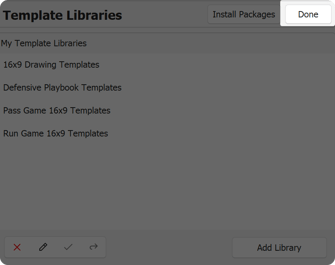
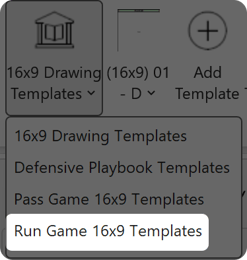
- You can confirm that these templates have been added by clicking on the template selector on the ribbon bar and see that the entry appears
ONE DRIVE
How to Share File Access if you're Using One Drive
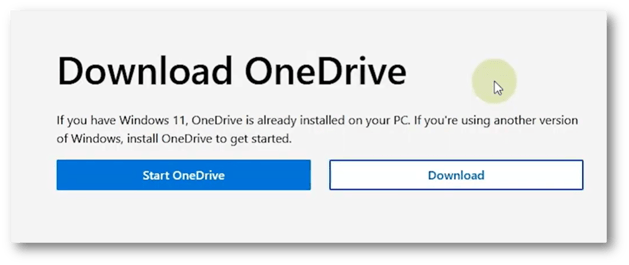
- If you do not have have a Windows 11 machine then you search One Drive and login on an internet browser then run the Download for One Drive.
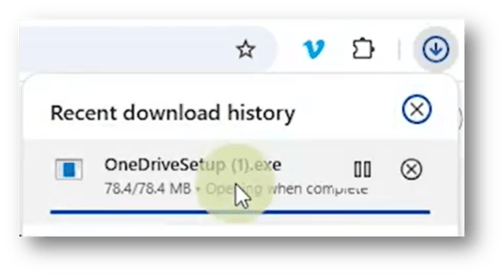
Select Yes to run the installer.
- PRO TIP: Before moving your folder to a share drive to disperse to your staff, under the PQDPlaybook and Play Library folder, rename the MASTER LIBRARY folder with your school name or abbreviation. This will help ensure everything is using the team playbook that you are sharing and not a base install library. If you are sharing custom template, drawing or shapes libraries we would highly recommend doing it to all of them.
- Now you will navigate to your PQDPlaybook folder within your file explorer then right click it and hit Share.
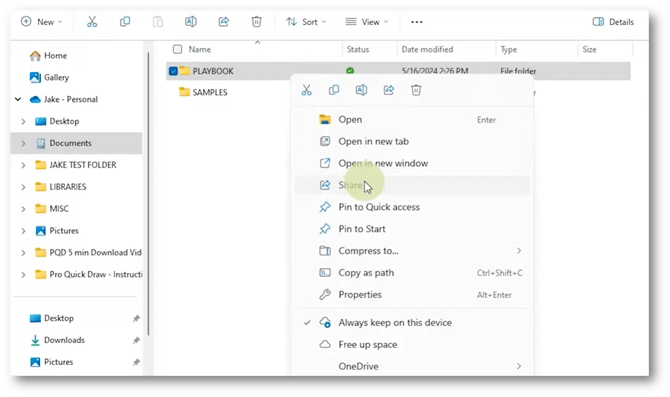
- In this menu, you will add everyone's email that you want to have access to the playbook within their own One Drive.

Ensure everyone is using the Shared Master Library by adding it to PQD
- Then everyone will open a Blank Presentation in PowerPoint and go to Settings in the right of the Home tab.
- Once PQD Playbook opens, click on the Libraries button and choose Manage Play Libraries
- Click Add Library
- Once the Select Library Folder window opens, navigate and select their OneDrive in the navigation pane on the left, then double click on PQDPlaybook.
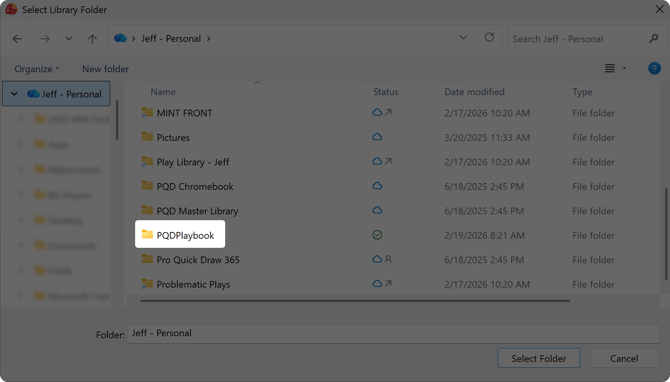
- Double click on Play Library
- Single click (select) the Library you are looking to add and then click Select Folder button
- Click Done
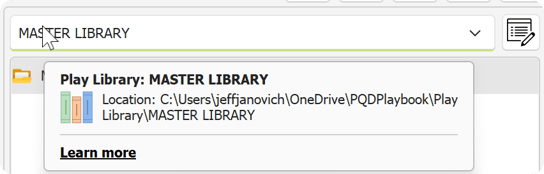
- Then select the proper library from the dropdown menu, if you have multiple. You can confirm by hovering over the dropdown - confirming this library is in your OneDrive.
Ensure everyone is using the correct Shared Templates by adding it to PQD
- Then everyone will open a Blank Presentation in PowerPoint and go to PQD Playbook in the right of the Home tab.
- Once PQD Playbook opens, click on the Libraries button and choose Manage Template Libraries
- Click Add Library
- Once the Select Library Folder window opens, navigate and select their OneDrive in the navigation pane on the left, then double click on PQDPlaybook.
- Double click on Templates
- Single click (select) the Templates you are looking to add and then click Select Folder button
- Click Done
- You can confirm that these templates have been added by clicking on the template selector on the ribbon bar and see that the entry appears