![Pro Quick Draw Logo_Grey.png]](https://www.proquickdraw.com/hs-fs/hubfs/Marketing%20Photos/Pro%20Quick%20Draw%20Logo_Grey.png?height=40&name=Pro%20Quick%20Draw%20Logo_Grey.png)
There are two ways you can set a field background image in PQD. First, you can simply add a slide background using our png field background images when dealing with plays you are adding from your playbook. Second, Play Editor allows you to select a preferred field background for your drawings. This ensures that any future plays you build on that drawing will automatically use the background you originally chose. Instructions and videos for both methods are below.
How to Set a Field Background Using PNG Images
How to Set a Field Background to Play Editor
Set Field Background using PNG Images
First you want to download the preset png background images
Open PowerPoint and create a blank presentation
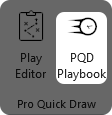
On the ribbon bar, select PQD Playbook
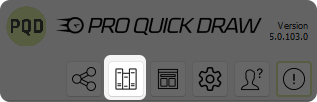
Select the Libraries button
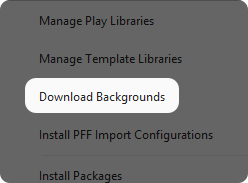
Select Download Backgrounds
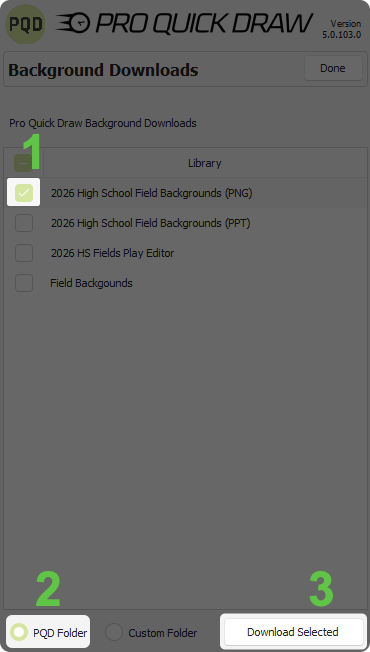
First you want to choose the field backgrounds labeled (PNG), then make sure PQD Folder is selected and click the Download Selected button
Once that download is complete choose Done
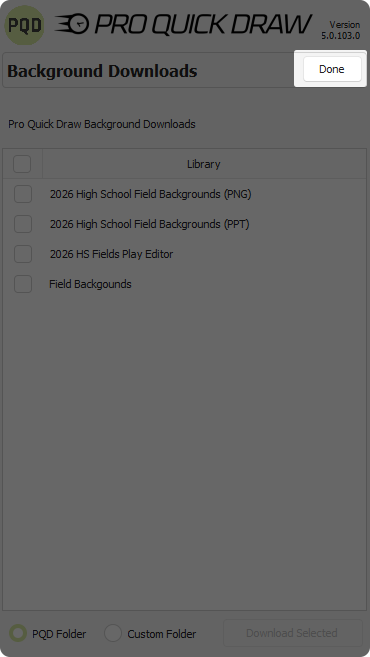
Now you can use the field backgrounds
To do so right-click on your slide and choose Format Background
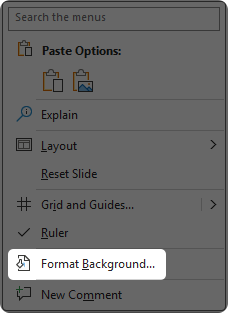
Choose Picture or texture fill then click Insert
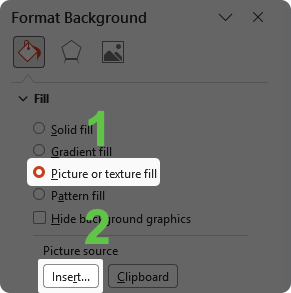
Once File Explorer opens, navigate to your PQDPlaybook folder where you installed the field backgrounds images (By default this is Documents > PQDPlaybook unless you chose to install the images elsewhere) and double-click Field Backgrounds
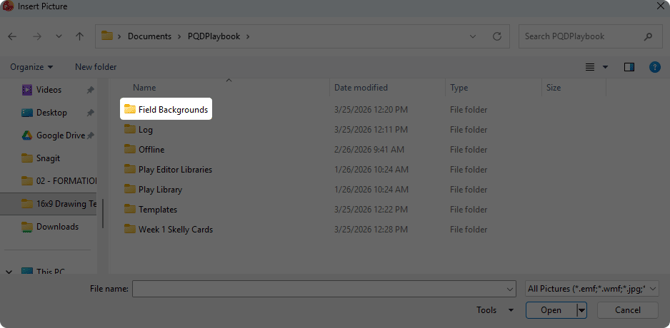
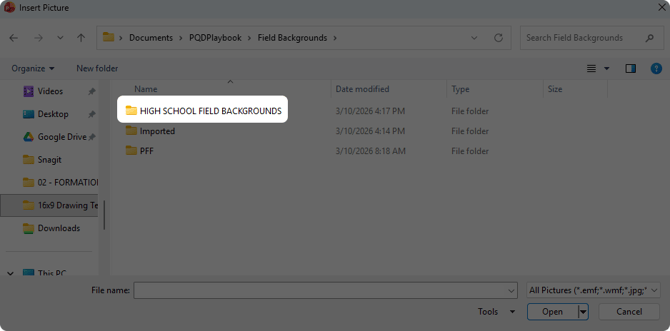
Then double-click HIGH SCHOOL FIELD BACKGROUNDS
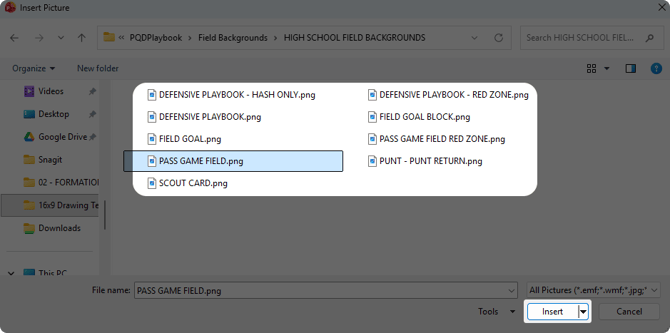
Then you would choose the field background you wanted and click Insert
Now your slide will have that field background set
Here is a video you can watch showing you these steps above:
Set Field Background to Play Editor
First you want to install the background files for use in Play Editor
On the ribbon bar, select PQD Playbook
Select the Libraries button
Select Download Backgrounds
First you want to choose the field backgrounds labeled (Play Editor), then choose Custom Folder and click the Download Selected button (we chose custom folder because being that its dealing with Play Editor we want to put the field backgrounds in the Play Editor Drawings folder specifically
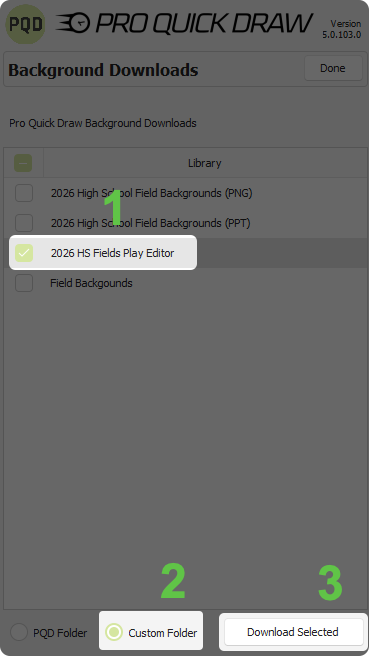
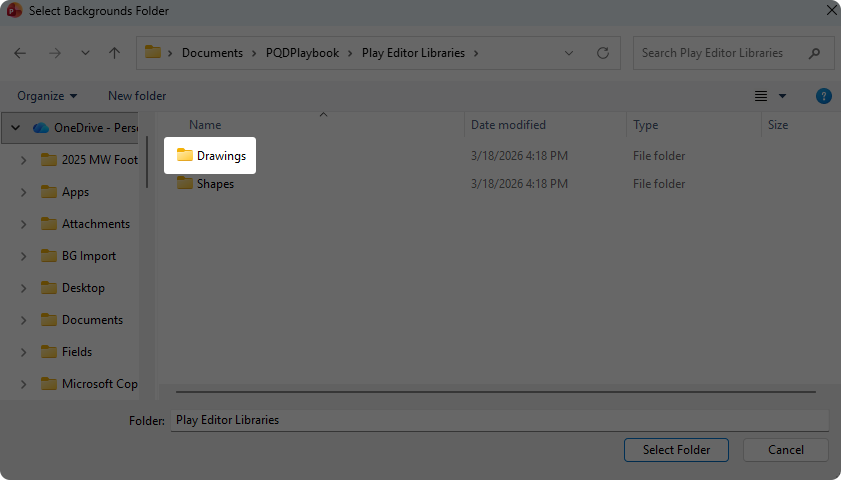
Once you click Download Selected a File Explorer window will open. Navigate to your PQDPlaybook folder and double-click Play Editor Libraries
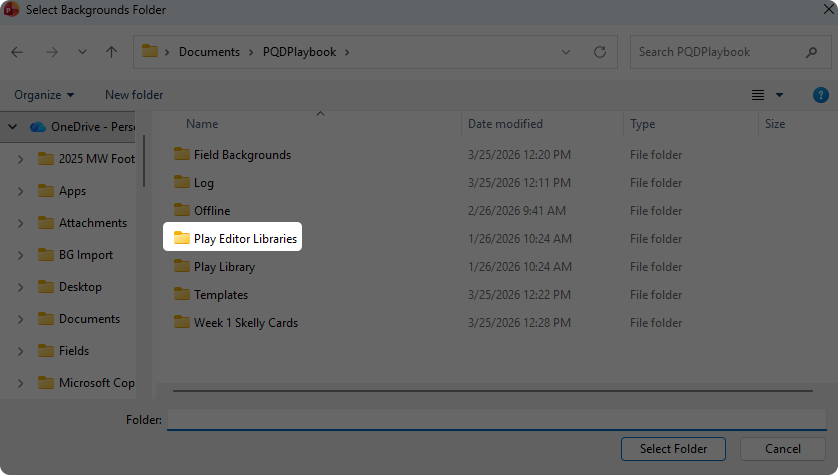
Double-click on Drawings
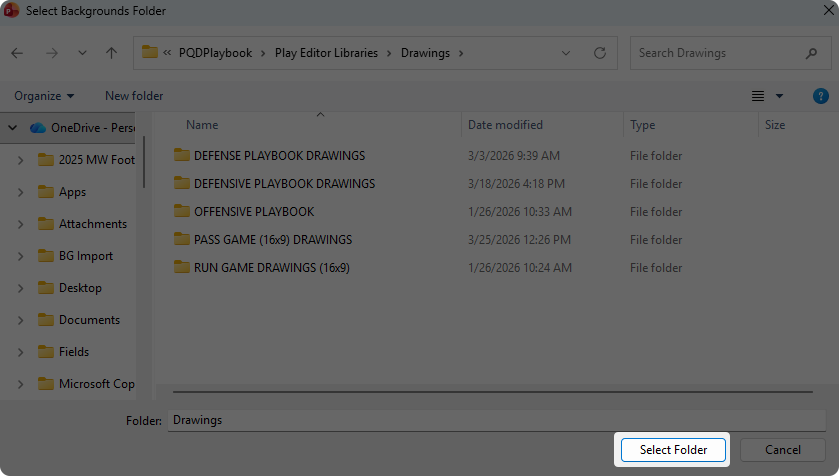
After you double-click the Drawings folder click the Select Folder button
Now we will add them to Play Editor to use
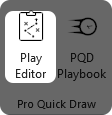
Open Play Editor on the ribbon bar
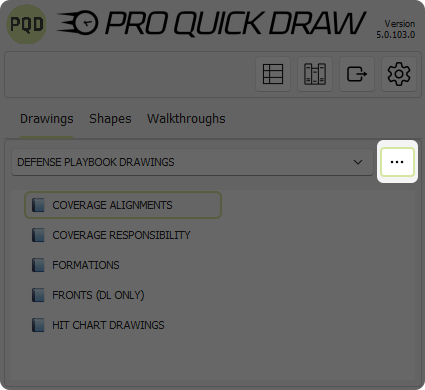
Click the 3 dots button
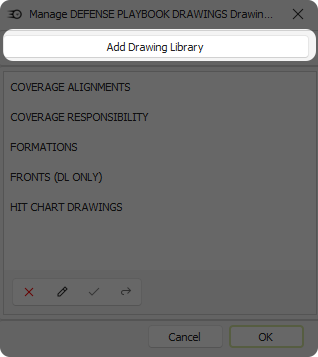
Click the Add Drawing Library button
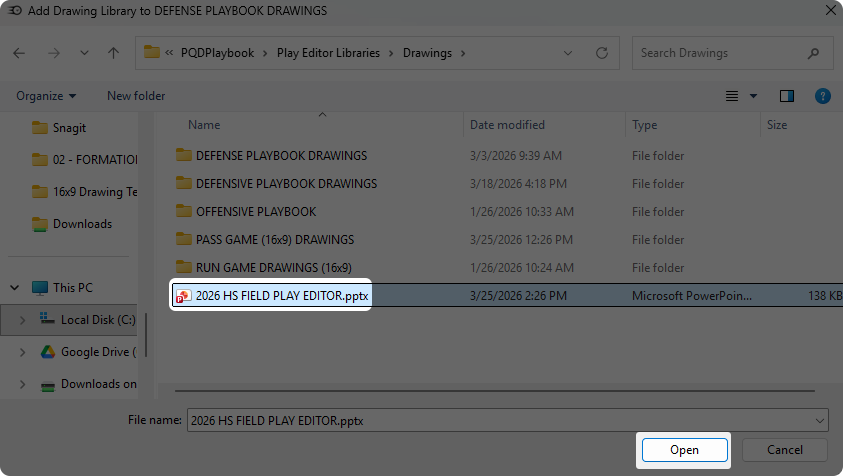
Navigate to the Drawings folder where we installed the Play Editor field background file, select the .pptx backgrounds file and click Open
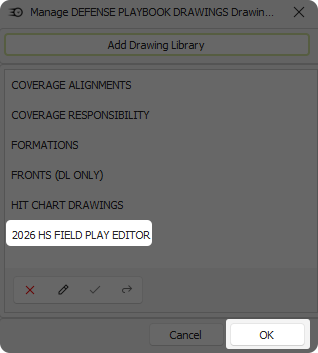
You should now see that the file has been added, click OK
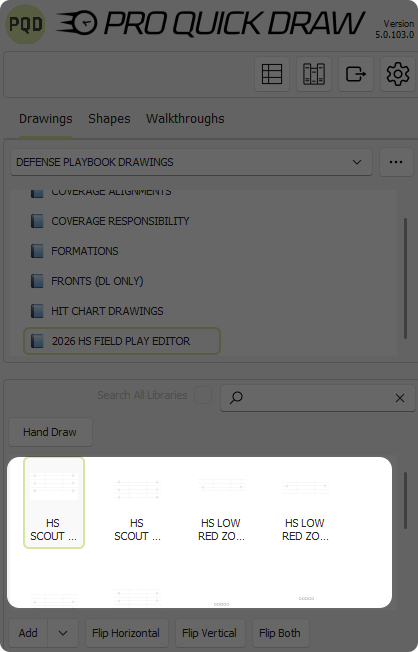
You should now see the HS FIELD PLAY EDITOR library in your Play Editor library list. Select it, then at the bottom of Play Editor you will see the different field backgrounds. Simply double click on the field background you want to add to your slide and it will place it as the background on the slide
Here is a video you can watch showing you these steps above: