![Pro Quick Draw Logo_Grey.png]](https://www.proquickdraw.com/hs-fs/hubfs/Marketing%20Photos/Pro%20Quick%20Draw%20Logo_Grey.png?height=40&name=Pro%20Quick%20Draw%20Logo_Grey.png)
What is it?
Using the Refresh feature on the ribbon bar allows to you ensure you have the most up-to-date version of the drawing in your template
Why does it matter?
Coaches edit alignments assignments frequently to put their players in the best position to succeed and using the Refresh feature allows to to ensure you are giving your players the most recent changes
How does it work?
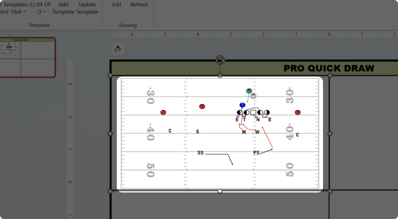
Once a drawing is added to a template, single click on the drawing
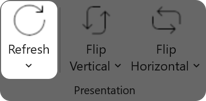
The Refresh button can be clicked directly and it will update the currently selected drawing - there are other options if you click on the arrow at the bottom of the Refresh button
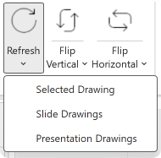
Refresh: Selected Drawing - This option will only refresh the drawing in the template you have selected
Refresh: Slide Drawings - This option will refresh all drawings on the currently visible slide. If this is a multi-slide presentation other slides will not be affected by this choice
Refresh: Presentation Drawings - This option will refresh each drawing on every single slide in your presentation in one click of a button - ensure you want to refresh every single drawing before clicking
Your drawing in the template should now be the latest version