![Pro Quick Draw Logo_Grey.png]](https://www.proquickdraw.com/hs-fs/hubfs/Marketing%20Photos/Pro%20Quick%20Draw%20Logo_Grey.png?height=40&name=Pro%20Quick%20Draw%20Logo_Grey.png)
Why does it matter?
Play Editor allows you to create an endless numbers of drawings to make you be the true owner and designer of your workflow and what works best for you. The last thing you want to do is have to keep drawing custom shapes over and over again. By being able to create custom shapes and add them to your shapes library, it allows you to only draw them once and now you can reuse them as much as needed with a simple click.
How does it work?
Click the Play Editor button on the PQD Ribbon Bar
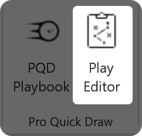
Select Shapes from the menu options then select the library you wish to edit - in this instance I am choosing Routes
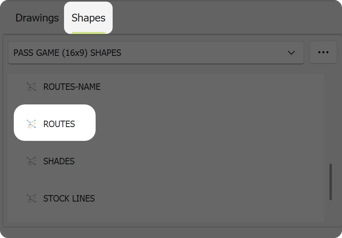
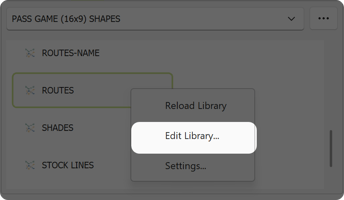
Right click on Routes and choose Edit Library from the menu
A new window will open showing the Routes file
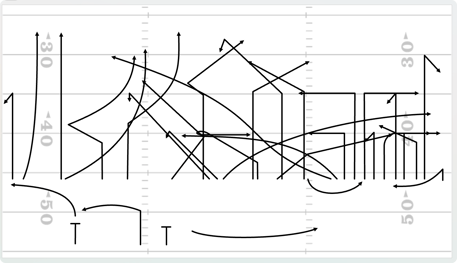
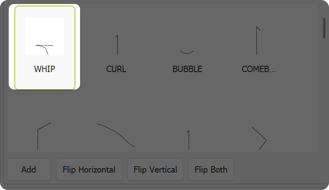
You can either copy and paste a route that you are already using from another drawing, or select the freeform tool and draw your own custom shape directly in the file as I did with the WHIP route
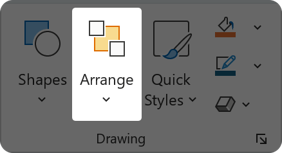
Once you draw or paste, click the Arrange button on the Home ribbon bar and select Selection Pane
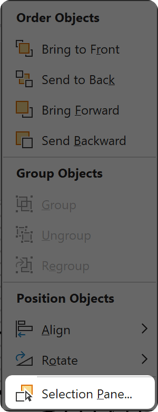
Now you should see a list of all of the shape names
Select the shape you pasted or just completed drawing and in that selection pane - you will see something like below - Freeform Shape 3
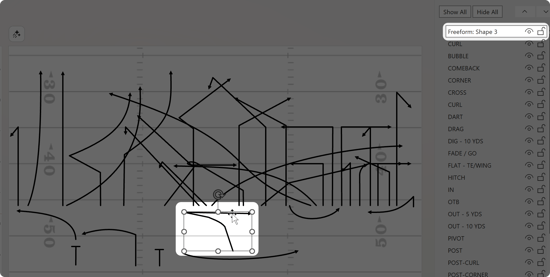
You can rename that shape to your own terminology, you will see in the screenshot below I renamed to WHIP and hit enter
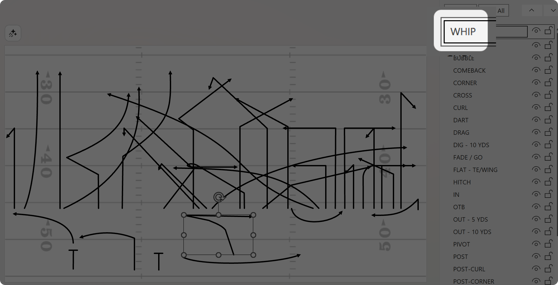
You can then save and close that Routes file
When you are back in your main PowerPoint window you can then right click on Routes in Play Editor and choose Reload Library
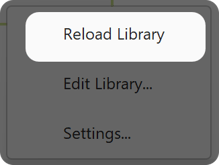
You should then see your new custom shape in the routes library to use