Click Here to Download
New Features
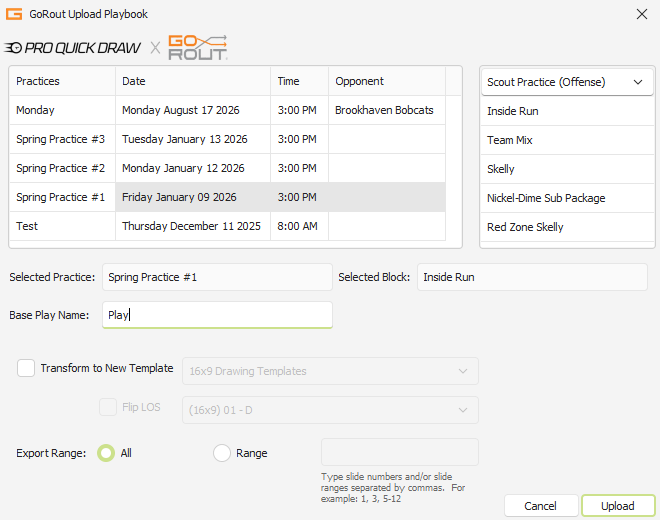
- GoRout Integration (Click here to view Press Release)
-
The Pro Quick Draw x GoRout integration allows coaches to:
- Connect their GoRout account directly within Pro Quick Draw
- Select a specific practice and practice block in GoRout
- Instantly send drawings from PQD to specified GoRout Practice Blocks
-
- PQD Playbook
- New Right Click Folder Options
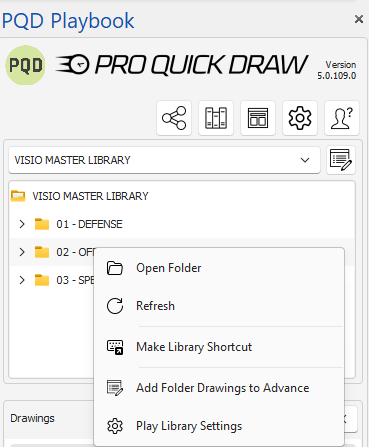
- Play Library Settings: Choose specific settings for that folder. IE Use Filename for the title rather than Drawing Title Style
- Add Folder Drawings to Advance - this will enable users to select a folder and add the contents of that folder to the advanced play menu to enable users to add/remove/organize content to be pushed into a template.
- Add Button Additional Features
- The Add button now has a dropdown menu with the ability to select a folder, and add all of the content into a template
- Add .mp4 files to a template slot
- New Right Click Folder Options
- PQD Play Editor
- Walkthroughs
- Ability to combine Drawings and Shapes into a custom section called Walkthroughs
- Shortcuts
- Ctrl-Shift ->
- Semi-Colon -> Activate Drawing Tab
- Single Quote -> Activate Shape Tab
- Left Bracket -> Focus Library List
- Question Mark -> Focus Items List
- W -> Activate Walkthrough Tab
- Tab through Objects when using the Shapes tool: Select an object, add a shape, hit the Tab key to go to the next object.
- When a list is focused you can navigate the it with arrow keysWhen Library List is focused and you press Enter key, the Items List becomes focusedWhen Items List is focused and you press Enter key, the highlighted drawing our shape is added to the slide/page
- Ctrl-Shift ->
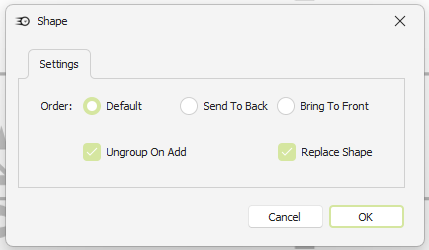
- Checkbox to replace a shape: Select and object, add a shape, keep same object selected, pick a new shape and that will replace the previous shape.
- The Add button now includes a dropdown menu that lets you quickly flip shapes for a specific direction. This speeds up the drawing process when you’re working in the opposite direction from how the drawing or shape library was originally created.
- Example: Choose flip horizontal and all of the shapes will be flipped horizontally by default.
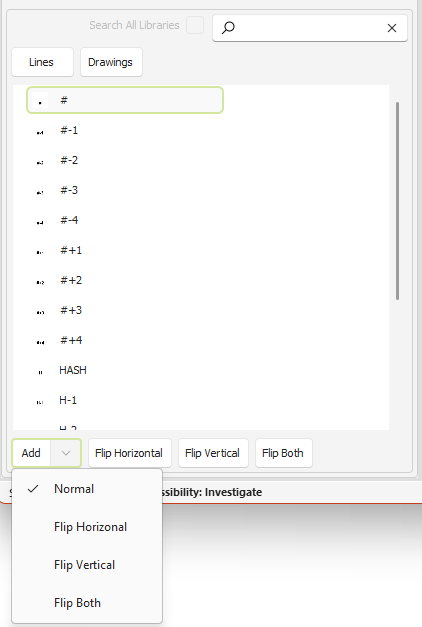
- Example: Choose flip horizontal and all of the shapes will be flipped horizontally by default.
- Exclude Drawing Library files from the Auto-Name function
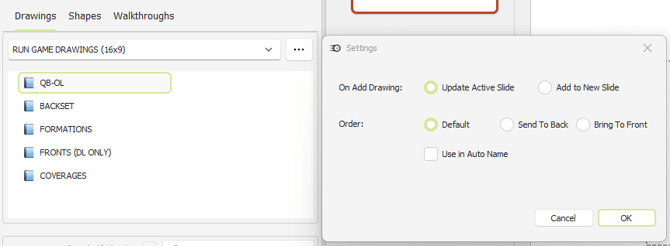
- If you have drawing libraries that you want available in the Play Editor but don’t want included in the Auto-Name feature, simply right‑click the library and clear the “Use in Auto Name” checkbox.
- Walkthroughs
Bug Fixes
-
Various bug fixes in regards to installation errors and checking for versions of PowerPoint & Visio
- General
- Improve Playbook Task Pane resizing for small screens
- Ensure Library Folders or sorted alphabetically
- Disable Playbook functionality when document is read only
- Improve Clipboard Copy/Paste Retry code
- After Clear button is used next drawing will now go to the next available slot
- Inserting/Delete Playbook Play that has one or more Blank Plays throws exception
- Updated Play Editor Library Management to better Support OneDrive Syncing Issues
- PFF Import without Catapult will now Open
- Visio
- Template Editor Catapult data was not populating correctly
- Use Legacy Setting - Drawing Title was not adding correctly to the Title area
- 1D Line fix
- Visio Playbook Legacy, if no title found in the added play, default back to filename
-
- Convert to PowerPoint: Ensure Visio is installed
- Visio PB Add Drawing with Guidelines moves shapes
- PowerPoint
- Add Prepare and Present folder to as Trusted Location
- Support Shade prefix of HEAD
- PowerPoint PE Flip Vertical/Both, thumbnail image not flipped correctly
- PowerPoint PE: Unable to click match, it shows both default and match selected
- Replace Shape - Error when route is made of multiple shapes
- Replace Shape - Not working when Ungroup on Add is enabled.
- PE, keep Shade when adding a block to a player
- Do not set Presentation or Document ID for Read only Files
- Export to PDF using PQD showing lines properly
- PPT - Fields now appearing when using flip vertical.
January 2026 5.0.50 Release
Pro Quick Draw Playbook
We’ve rebranded our flagship software to PQD Playbook to align with our expanding suite of products and integrations, including Catapult, QwikCut, Hudl, GoArmy Edge, GoRout and Ethos (formerly Learn To Win). This update paves the way for the launch of our new offerings, which include:
Updates for the 5.0 PQD Playbook Product Include:
1. Installation Packages
These tailored starter kits provide curated Drawings, Shapes, Templates & Field Backgrounds designed to streamline setup based on your specific coaching workflow. Select the option that aligns best with your needs that includes hundreds of Play Editor Drawings & Shapes along with templates that match the drawing style:- Defensive Playbook
- Scout Cards for Offense & Defense
- Drawing the Run Game in a 4x3 Slide (NFL 6 Box Style)
- Drawing the Run Game in a 16x9 Slide
- Drawing the Pass Game
- All Special Teams
2. Playbook Product Updates (Formerly Toggle Panel)
- Updated User Interface & Custom Branding
- Dropdown Menu to Manage Multiple Play & Template Libraries
- Improved Library Folder Structure for More Subfolders Relating to Self & Opponent Scout
- Improved Library Management Functionality
- Improved Search Functionality & Speed
- Updated & Added Templates for All Types of Coaching Roles that specifically fit the drawing size.
ie. 16x9 - If the file location of a play has been moved or is not located, you will be prompted with a message to update the new location
- Advanced Play Selector that enables you to select and combine multiple plays from different formats
- Create a Custom Shortcut from Play Library Folder to the Play Library Dropdown
- Hover to view a Play Thumbnail
- Duplicate Play to instantly copy an existing drawing and place the new version into the next available box
- Enable "Always Open PQD Playbook" to open PQD Playbook upon Visio/PPT Startup
- New Template Editor Settings & Features
- "Save As" is now "Save Copy" to not confuse with the native PowerPoint/Visio "Save As"
- Add an Images Folder as a Play Library, then the images in that folder are available to add to a template
- Add Play Drawing to slide from Play Library (with Play Editor Open) to create a faster process to edit or create a new version
3. Play Editor Upgrades
- Export Drawings from the Play Editor to Create Individual Files within Play Library Folders
- New Blocking Shapes that include a Line as the Endcap for Blocks Rather than Dots
- Insert an existing drawing from your play library directly onto a slide as an editable drawing. This will also include the file name in the add notes section.
- Added Dropdown Menu to Quickly Change Drawing & Shape Libraries
- When you insert a drawing from the Play Editor, its slide name is automatically added to the Notes section. You can add multiple drawings to complete this process.
- Reorganize your Library Order with Drag & Drop Capability
- Ungroup Shapes when Adding to a Drawing
- For visibility, when using the Line tool "Match" a player with a White Fill Color will default to Black
- Right Click a Shape and Set the Line or Freeform Settings as Default
4. Integration Upgrades
Catapult & PFF
-
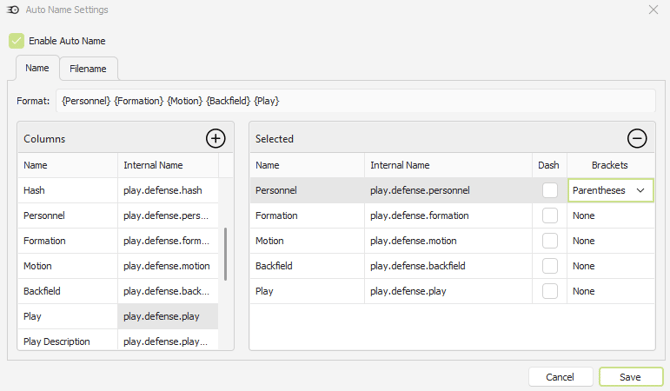
Auto-Name Imported Plays Using Data from ThunderCloud
-
Import/Export PFF Mappings
- New field backgrounds for improved field/player spacing
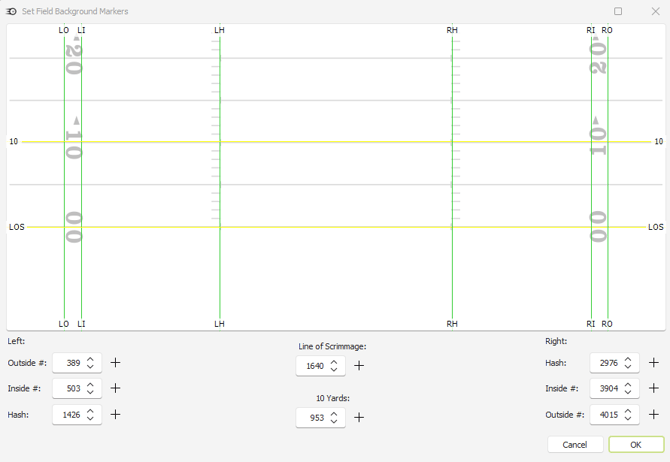
- Updated Field Background Markers for easier implementation
- Advanced filter options when analyzing data from Thunder
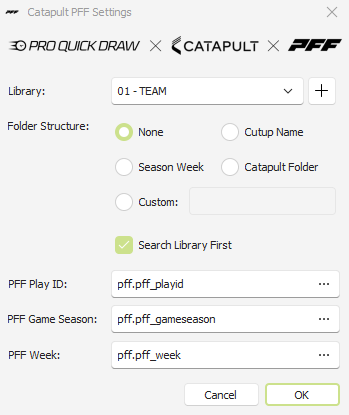
- New Catapult folder options to assist with organizing imported diagrams
Qwik Cut & Hudl Video
-
Advanced filter options when analyzing data from your video software
- Frequency Sort multiple columns using Shift Key + Click
- Video Angle not needed to add a play diagram to a template with Data
GoRout
- Free integration for PQD + GoRout Users
-
Export plays from PQD directly to a practice & practice block within GoRout.
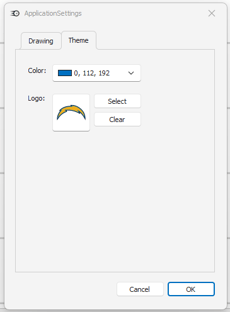
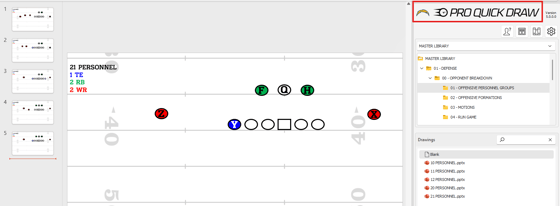
Updated UI & Branding
The updated product now features enhanced customization options, allowing users to incorporate their team or school logos directly into the platform for a more personalized and professional look.
Updated Buttons to access library management, template editor, settings & customer support.
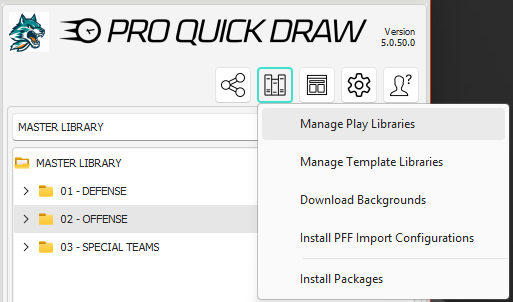
Managing Libraries (Book Shelf Button)
This will enable users to access and manage their Play Library Folders, Template Library Folders and installation packages.
Managing Play Libraries
-
New Dropdown menu to quickly switch between libraries
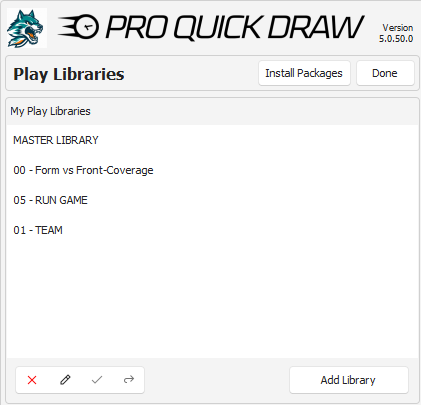
- Drag and Drop to adjust Play Library Order (Top Library is the Default Location)