![Pro Quick Draw Logo_Grey.png]](https://www.proquickdraw.com/hs-fs/hubfs/Marketing%20Photos/Pro%20Quick%20Draw%20Logo_Grey.png?height=40&name=Pro%20Quick%20Draw%20Logo_Grey.png)
- Open the Cutup Generator
- Create or Select a Project
- Add Games to Project
- Create Sorts and Filters
- Create Cutup Definitions
- Generate Cutups
- Upload Cutups to Video Platform
- Reuse Setup for Future Opponents
- Example Weekly Workflow
- Best Practices
- Summary
Step 1: Open the Cutup Generator
To start using the tool:
Open Integrations in PQD.
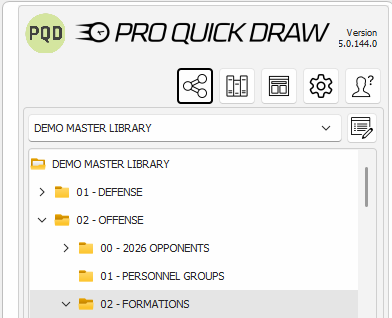
Select your video software.
Click Cutup Generator.
This opens the Cutup Generator workspace where you will manage projects, cutup definitions, and uploads.
Step 2: Create or Select a Project
A Project acts as your main container for scouting work. This will manage the games you want to use for generating cutups.
Projects allow you to:
-
Select which games you want to analyze
-
Apply Global Filters (ODK = "O")
-
Generate all Folders & Cutups related to that project
Example project types:
-
Opponent Offensive Scout
-
Opponent Defensive Scout
-
Opponent Special Teams Scout
-
Self Scout Offense
-
Self Scout Defense
-
Self Scout Special Teams
-
Practice
Example
You might create a project called: Opponent Offense
This project could include:
-
Multiple opponent games
-
Filter such as ODK = "O"
For example:
-
Offensive Scouting → filter by offense (ODK = "O")
-
Defensive Scouting → filter by defense (ODK = "D")
-
Special Teams → special teams only (ODK = "K")
Projects allow you to tailor the dataset before any cutups are generated.
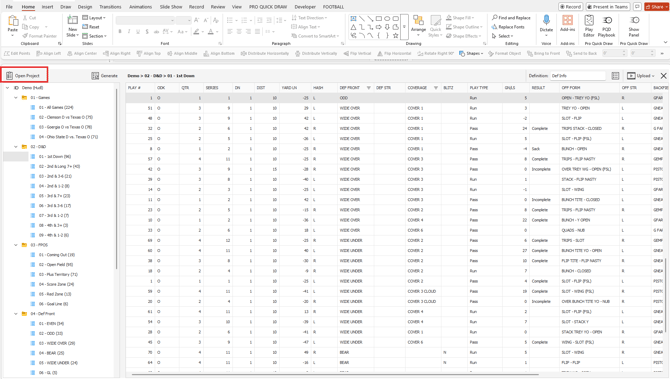
Select the Project button where you see Open Project in the photo.
Step 3: Add Games to Your Project
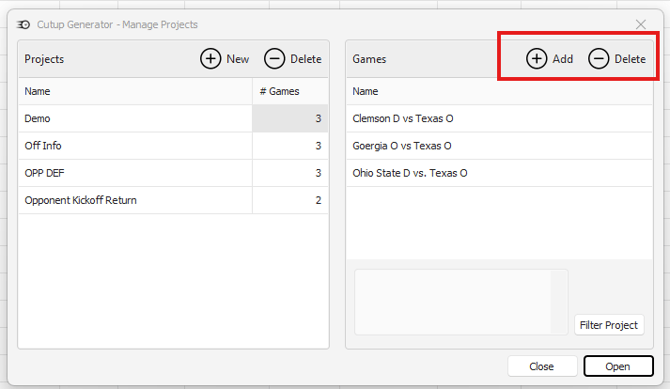
Inside your project, you will select the games that will be used to generate cutups.
You can include:
-
A single game
-
Multiple games
-
Entire opponent film libraries
These games become the source material for every cutup generated in the project.
Step 4: Create Sorts & Filters
Sort rules determine how plays appear inside the final playlist. These allow you to order the playlist in a particular format that help establish tendencies from an opponent.
These rules are applied automatically when the cutups are sent to your video platform.
Defensive Examples for an Opponent Offense may look like:

This would organize the cutup and have it sorted by Personnel/Off Form/Backfield/Play Type automatically sorted when you upload it to your video provider.
This ensures the most common tendencies appear first when coaches watch the cutup.
To add a sort rule:
-
Click the Edit Definition Button (Located to the Right of Definition Dropdown)
-
On the Folder Side, Click Add
-
Click Sort Rules in the top left
-
Click New for a new Sort Rule or Select a previously created sort and select Edit
-
Select a column
-
Choose Sort Order:
-
Ascending
-
Descending
-
Most Frequent
-
Least Frequent
Once configured, these sorting rules will apply automatically once you create a definition and apply the Sort Rule to the Folder Playlist.
Step 5: Create Cutup Definitions
A Cutup Definition controls the structure of your cutups. Think of this as the menu system that organizes your playlists.
Within a definition you will have:
-
Folders (categories)
-
Cutups (playlists generated from values/filters)
For example:
-
Opponent Offense
-
Games
-
Down & Distance
-
Field Position (Field Zones)
-
Personnel
-
Formation
-
Pass Concepts
-
Run Concepts
You can create separate definitions for different coaches or units, such as:
-
Offensive Staff
-
Defensive Staff
-
Special Teams
-
Individual Position Coaches
The following options are available:

Games
-
Game cutups allow you to create playlists for:
-
Individual games
-
A combined All Games playlist
-
-
The All Games option merges plays from every selected game into one master cutup.
-
This is useful for:
-
Overall opponent tendencies
-
Personnel analysis
-
Concept scouting
-
Down & Distance
-
Cutups organize plays based on situational football.
-
The system includes default templates by clicking Generate Defaults such as:

-
-
You can adjust these filters as needed.
-
Apply your Sort Rule within this set that was created above.
-
Example
-
If you want to define 4th and 4+, you can:
-
Set Minimum Distance = 4
-
Set the maximum distance as needed
-
You will also define which columns contain your data, such as:
-
Down Column (DN)
-
Distance Column (DIST)
-
Series Sequence Column - This is a custom column if you establish the play # within a drive.
-
Series = 1, Series Sequence is (1,2,3,4)
-
Series Sequence represents the play within the seris.b
-
These fields ensure the generator reads your data correctly.
-
Field Position
-
Cutups organized by plays in predefined Field Zones
-
The system includes default templates by clicking Generate Defaults such as:
-
The fields can be customized to fit your terminology and zones.

-
Wildcard
Wildcard cutups are one of the most powerful automation features.
Instead of manually creating filters for every value, Wildcard automatically creates a cutup for each value in a column.
Example
If you use a Wildcard on the Personnel column, the system will automatically generate cutups for:
-
10 Personnel
-
11 Personnel
-
12 Personnel
-
21 Personnel
These can be sorted based on an individuals preference.
This eliminates the need to manually build each personnel playlist.
Filter
Filters are custom value sets that allow a coach to combine columns of data to create their custom filter.
Example:
-
1st Down Passes
-
Explosive Runs
-
Explosive Passes
-
3rd Down Blitz's
Ad Hoc
This folder section allows you to create new folders and subfolders that contain playlists. The playlist have the ability to add media types to the playlist such as a PowerPoint file.
A scenario to use this would be to drag and drop cutups from other playlists in order to build a new specific cutup you want manually. You may create a folder for Monday's practice with specific plays for the unit meeting. By having these folders with playlists you can also add PowerPoint or Visio files to be uploaded as slides within your video software.

Step 6: Generate Your Cutups
Once your project, definitions, and cutups are configured:
-
Click Generate
-
Confirm the generation
The Cutup Generator will:
-
Analyze the selected games
-
Apply your filters
-
Create all defined cutups
Within seconds, the playlists will be ready for upload.
Step 7: Upload Cutups to Your Video Platform
After generation is complete:
-
Click Upload
-
Select Upload Cutups
-
Choose the destination folder in your video platform
- Click the Share button in the bottom left to select which users you would like to have access to the cutups
-
Click Upload
Your cutups will automatically appear in your video platform with the correct organization and sorting applied.
Step 8: Reuse Your Setup for Future Opponents
One of the biggest advantages of the Cutup Generator is that your setup only needs to be built once.
For future opponents:
-
Open the same Project
-
Remove the previous opponent's games
-
Add the new opponent's games
-
Click Generate
-
Upload the new cutups
This process can take less than three minutes per opponent once your system is configured.
Example Weekly Workflow
A typical weekly process might look like:
-
Open your Opponent Scout Project
-
Remove last week's games
-
Add the new opponent's games
-
Click Generate
-
Upload the cutups
Your playlists will automatically appear in your video system with:
-
Personnel cutups
-
Formation cutups
-
Down and distance cutups
-
Fully sorted video
Best Practices
To get the most value from the Cutup Generator:
Set up your definitions carefully the first time
Your weekly workflow becomes extremely fast once the structure is built.
Use wildcard cutups whenever possible
This automatically builds cutups for values like personnel or formations.
Apply meaningful sort rules
Sorting by frequency helps coaches quickly identify tendencies.
Organize projects by unit
Separate projects for offense, defense, and special teams can improve clarity.
Summary
The PQD Cutup Generator is designed to automate the most time-consuming part of video scouting.
By setting up projects, definitions, and sort rules once, you can:
-
Generate dozens of cutups instantly
-
Keep playlists consistently organized
-
Upload directly to your video platform
-
Prepare weekly opponent scouting in minutes
With a properly configured project, building a full opponent scouting package can take less than three minutes each week.
Dive deeper into project in this article: Create and Manage Projects