![Pro Quick Draw Logo_Grey.png]](https://www.proquickdraw.com/hs-fs/hubfs/Marketing%20Photos/Pro%20Quick%20Draw%20Logo_Grey.png?height=40&name=Pro%20Quick%20Draw%20Logo_Grey.png)
What is this function?
It is a way for a user to select any folder on their computer or shared drive shortcut and add it into their Play Library so that they can have access to it when building their Playbook with PQD.
Why is it important?
If a user has drawing files stored on their computer that are not yet visible in their Play Library, they can use this function to add the folder containing those files as a Play Library, making those drawings immediately available when working with PQD in PowerPoint.
How to Add a Play Library to Your PQD Playbook
-
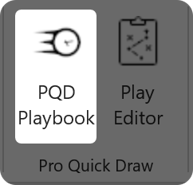
Open up your PQD Playbook icon within PowerPoint
-
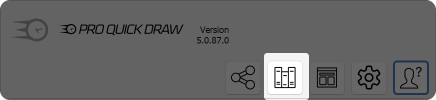
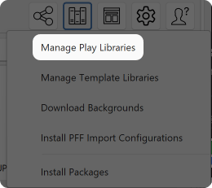
Select the Libraries Icon and then choose Manage Play Libraries
-
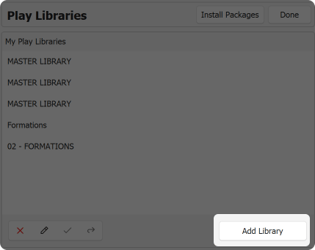
Then you will select the Add Library button and navigate to the Play Library folder you want to add to your PQD Playbook and press Select Folder
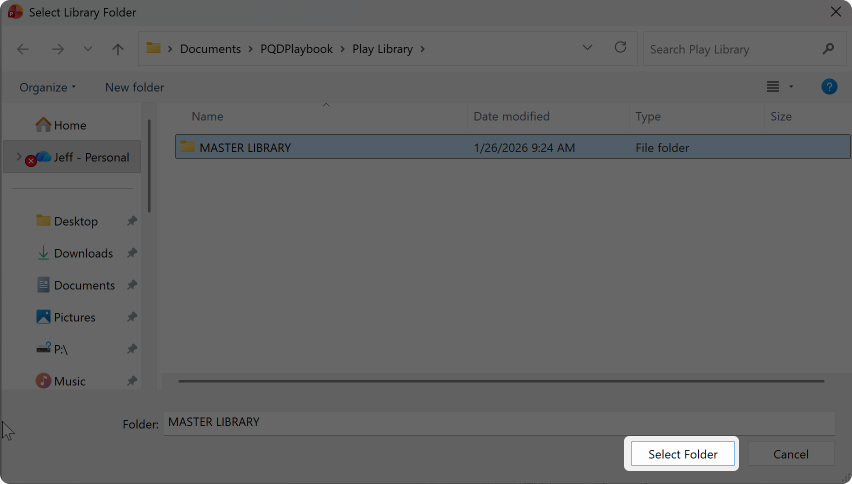
- For a shared drive Play Library you will need to make sure you first go to the Shared Drive Shortcut first and then navigate to where the folder lives in the shared drive
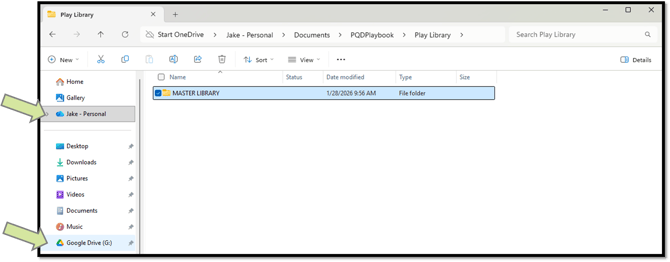
If you do not have a shared drive shortcut (Google Drive and One Drive shown above) Then you will need to follow the shortcut download step in the linked article below.
Shortcut Article: Share Your Master Library with Other Coaches on Staff