![Pro Quick Draw Logo_Grey.png]](https://www.proquickdraw.com/hs-fs/hubfs/Marketing%20Photos/Pro%20Quick%20Draw%20Logo_Grey.png?height=40&name=Pro%20Quick%20Draw%20Logo_Grey.png)
Note: If you experience any issues with the Pro Quick Draw Hudl integration, please contact PQD Support directly. This integration was built and is maintained by Pro Quick Draw, so Hudl Support will not be able to troubleshoot or resolve PQD integration-related issues.
Note: You must purchase the Hudl Integration from Pro Quick Draw to use the integration & you must have Hudl Package Gold (or higher) in order to add presentations to your Hudl Account
- Close PowerPoint or Visio
- Ensure you're running latest version of Pro Quick Draw from the PQD Dashboard
- Open PowerPoint or Visio > Open PQD Playbook in the right side of the Home tab> Click the Integrations button and select HUDL to login with your Hudl credentials
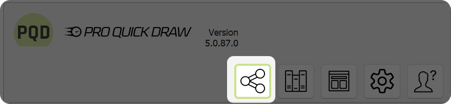
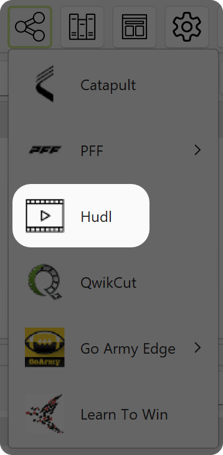
- If this is a new installation you will be prompted to create a new column set, you would click NEW
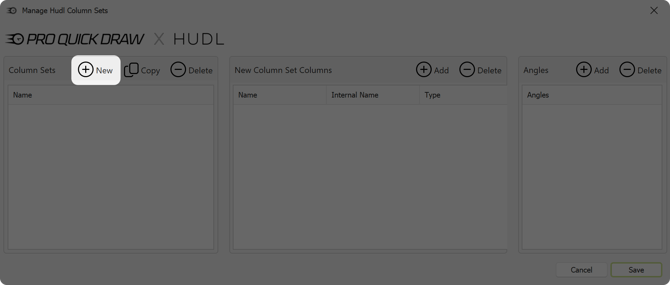
- If you have an already established HUDL connection in PQD and want to confirm or change your column sets you would select the Manage Column Sets button to the right of the PQDXHUDL Integration panel

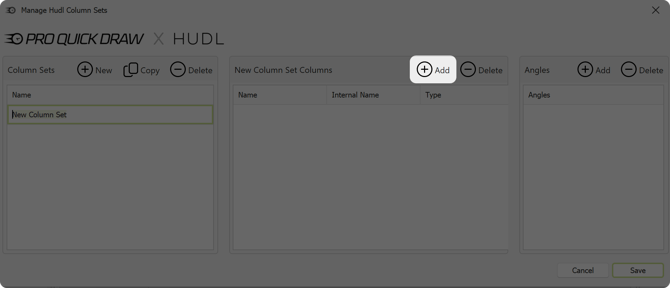
- Once you name your column set you will want to add the columns you wish to display, to do that click Add next to New Column Set Columns
- You would simply select the columns you want to be displayed and click Add Selected to do 1 by 1, or click Add All if you want everything visible
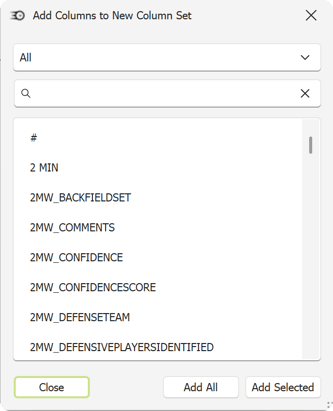
- Once you have all of the columns added that you want click the Close button
- Next you will choose the camera angles of the film you want to add by clicking the Add button in the Angles section
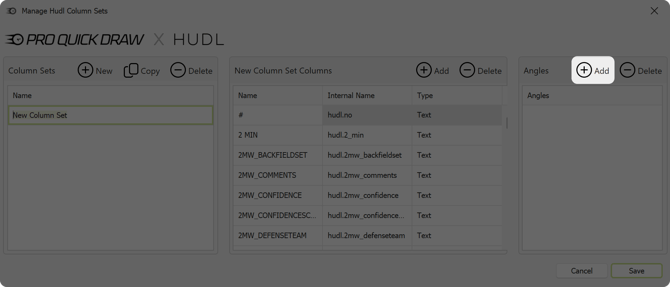
- You would select the angles you have film in and add those using the Add Selected button
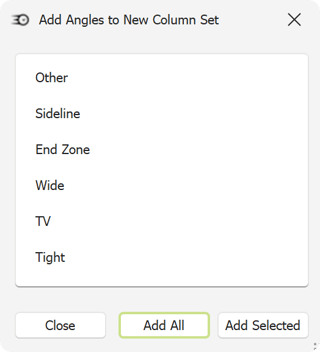
- Once you have all angles selected click the Close button
- You should now have everything completed, click the Save button
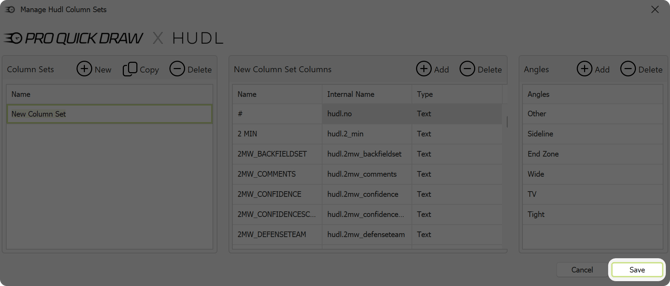
Note: You will want to make sure your Clip Angles match the angles for the playlist in Hudl that your opening
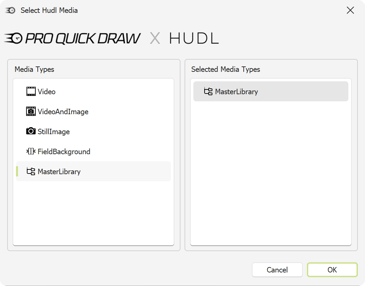
- Then you will want to make sure you have the correct media selected in Media To Add by double clicking the ones you want from the left Media Types section into the Selected Media Types section
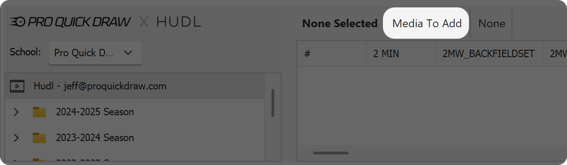
- Select your team account using the dropdown menu next to School and begin to navigate your playlist library to find the correct playlist.
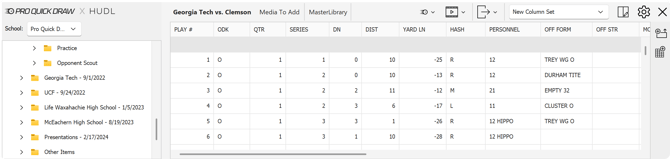
- To the right of this menu you will be able to see the Data associated with the playlist
Now you're Hudl integration is ready to be used to build out presentations
Next Steps: How to Upload Playbook as a new Playlist