![Pro Quick Draw Logo_Grey.png]](https://www.proquickdraw.com/hs-fs/hubfs/Marketing%20Photos/Pro%20Quick%20Draw%20Logo_Grey.png?height=40&name=Pro%20Quick%20Draw%20Logo_Grey.png)
A title slide is an automatically generated slide that appears before each group of plays within a cutup whenever the column value changes. It displays the name of the column, the number of plays in that group, and its percentage of the total — giving your staff and players immediate context before the film begins.
For example, before all Zone runs play, a slide will appear showing Zone — 40 of 90 runs — 44%. Before the Gap runs play, a new slide shows Gap — 24 of 90 runs — 26%. This is controlled by a sort rule that has count and percentage enabled.
📋 Prerequisites
You must have an open project with a definition already set up, and a Runs Only filter already created, before following these steps. See the Definitions & Filters article if you have not yet built your definition.
- Create Filter Sort Rule
- Create Wildcard Folder
- Save and Generate
- Customize Title Slide
- Upload Cutup
- Best Practices
Step 1 — Create the Filter Sort Rule
The sort rule is the engine behind the title slide. It defines the order plays appear within the cutup and tells the system to generate a count and percentage each time the column value changes. You want the column of data to represent your slide at the top of the Sort Order.
- Open your definition for editing. Go to your project, click the three-dot icon next to Definition, and open Managed Definitions.
- Click "Add" and select "Sort Rules." Click the Add folder button and select Sort Rules from the menu.
- Click "New" and name the sort rule. Name it something descriptive — for example, Run Family.
- Add the column you want to use as the first sort item. Click Add, select the column, and set the sort order to most to least frequent. Click OK.
- Add additional sort columns in order. Click Add again for each of the following, setting each to most to least frequent: For Example
- Personnel
- Offensive Formation
- Run Concept
- Offensive Play
- This order means the cutup will always start with run family, then drill down into personnel, formation, concept, and individual play.
- Enable Count and Percentage. At the top of the sort rule configuration, check both the Count and Percentage checkboxes. This tells the system to calculate and display a count and percentage value each time the run family changes — and to generate a title slide for each group.
- Click "OK." Your Run Family sort rule is now saved and ready to apply.
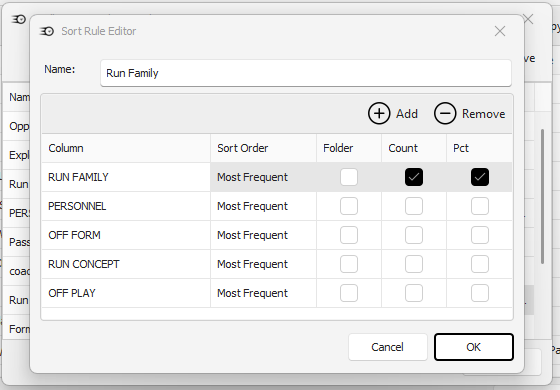
⭐ Pro tip — Count and Percentage is what generates the title slide
The Count and Percentage checkboxes are the key to this entire workflow. Without them checked, the sort rule will still organize the film correctly, but no title slides will be generated for each change in data. Always verify these are enabled before saving the sort rule.
Step 2 — Create the All Runs wildcard folder
Now you will create a wildcard folder that pulls in all runs, applies your Run Family sort rule, restricts the content to runs only via a filter, and enables title page generation.
- Click "Add" in your definition and select "Wildcard." From the Add menu in the Managed Definitions panel, go to New and select Wildcard.
- Name the cutup "All Runs."
- Set the column to "Play Type." Select Play Type as the wildcard column.
- Set the sort order to frequency descending.
- Set the Sort Rule to "Run Family." In the Sort Rule field, select the Run Family sort rule you created in Step 1.
- Apply the Runs Only filter. In the Filter Rule field, select your Runs Only filter to restrict the cutup to run plays exclusively.
- Select "Generate Title Page." Check the Generate Title Page option. This enables automatic title slide generation for this cutup. You do not need to open Title Page Settings at this point — enabling Generate Title Page is sufficient to proceed.
- Click "OK," then "Add Selected." Confirm the configuration and add the All Runs folder to your definition.
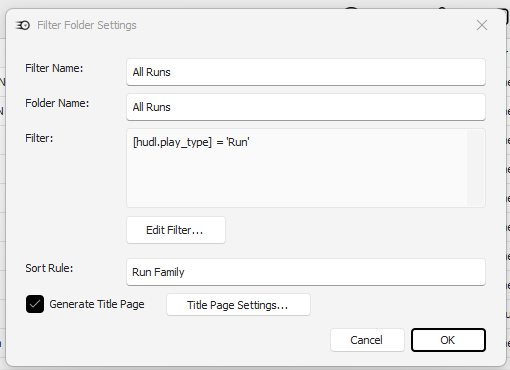
💡 Tip — The filter and sort rule work together
The Runs Only filter controls which plays are included. The Run Family sort rule controls how those plays are ordered and when a new title slide appears. Both must be applied for the title slide workflow to function correctly.
Step 3 — Save and generate
- Click "Save." Save the definition with your new All Runs folder before generating.
- Click "Generate." The system will build the All Runs cutup. Once complete, the All Runs folder will appear in your definition with each run family group listed and a clip count in parentheses.
📋 Note — Reading the clip counts
After generating, you will see each run family group listed with a parenthetical count — for example, Zone (40) or Gap (24). These counts reflect how many clips fall into each group out of the total run plays in the project.
Step 4 — Customize the title slide in PowerPoint
The title slide template is a standard PowerPoint file that you can edit to match your program's branding and layout preferences. You access it by right-clicking the generated folder.
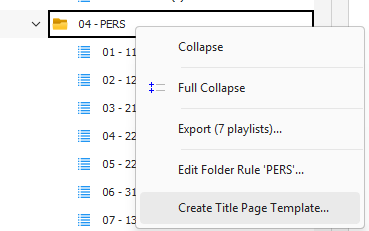
- Right-click the Cutup folder in your generated definition.
- Select "Create Title Page Template." This opens the title slide template as a new PowerPoint file.
- Customize the slide layout. Common customizations include:
- Change the font to match your program's style
- Move or resize the value placeholders (run family name, count, percentage)
- Stretch out value fields to accommodate longer text strings
- Insert your program logo
- Rearrange the layout to suit how your staff reads the slide
- Close and save the PowerPoint file. When you are satisfied with the layout, close the file and save it. The template is now set for this cutup.
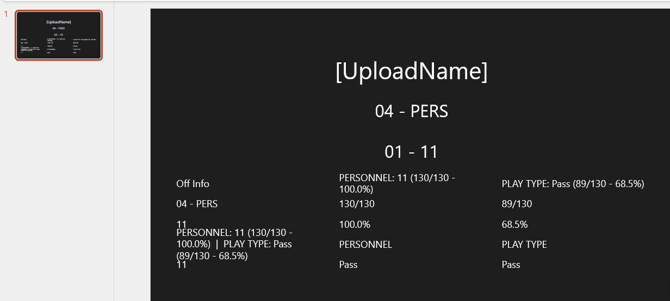
⭐ Pro tip — Stretch your value fields
Make the count and percentage placeholder fields wider than you think you need. If a run family name or percentage value is long, a narrow field will cut it off. Giving the fields extra room ensures every title slide displays cleanly regardless of the data.
💡 Tip — This is just PowerPoint
The title slide template is a standard .pptx file. Any design change you know how to make in PowerPoint works here: fonts, colors, shapes, images, logo placement, and layout repositioning.
Step 5 — Upload the cutup
- Go to Upload → Upload Cutups.
- Create or select a destination folder. For example, create a new folder called Demo Run Family to keep it organized.
- Select only the All Runs cutup. If you do not want to upload everything in the project, select only this cutup for upload.
- Click "Upload." The system will upload the cutup and automatically generate a title slide for each run family group within it.
💡 Tip — Share with specific coaches or players
After uploading, you can share the cutup with specific staff members — such as your D-line coach — or with individual players. Uploading first and then sharing gives you control over who sees the film.
What the result looks like
After uploading, open the cutup. On play one, you will see the first title slide before any film plays. The slide displays the run family name, its play count, and its percentage of total runs.
As you progress through the cutup, a new title slide will automatically appear each time the run family changes. For example:
- Zone — 40 of 90 runs — 44%
- Gap — 24 of 90 runs — 26%
- Each remaining run family continues in order from most to least frequent
Within each run family group, plays are further organized by personnel, formation, run concept, and play — exactly as defined in your sort rule. Your staff can immediately understand the opponent's run tendencies before watching a single rep.
Best practices
- Build the sort rule before the wildcard folder. The sort rule must exist before you configure the wildcard folder, since you will select it from a dropdown during wildcard setup. Always complete Step 1 before Step 2.
- Always check both Count and Percentage together. Both values appear on the title slide. Checking only one will result in incomplete slide information. Enable both at the same time.
- Customize the template once and reuse it. Once your title slide template is styled the way you want, it will serve every breakdown you produce with that same structure. Invest the time upfront in a clean layout.
- Upload selectively when sharing with coaches. You do not need to upload an entire definition at once. Uploading only the All Runs cutup keeps your shared folder clean and ensures coaches receive only the film relevant to them.
⚠️ Warning — Title Page only generates if the option is checked
If you forget to check Generate Title Page in the wildcard folder settings, the cutup will upload without title slides. You will need to go back into the definition, edit the folder, enable Generate Title Page, save, re-generate, and re-upload.