![Pro Quick Draw Logo_Grey.png]](https://www.proquickdraw.com/hs-fs/hubfs/Marketing%20Photos/Pro%20Quick%20Draw%20Logo_Grey.png?height=40&name=Pro%20Quick%20Draw%20Logo_Grey.png)
What is it?
A Play Editor drawing or shape file is a core building block for an individual play file, which is then stored in a folder within your Play Libraries in the PQD Playbook. They can be installed through an Installation Package or individually added within the Libraries button.
Why is this process important?
If a Play Editor file is ever corrupted, outdated, or needs to be replaced, you’ll need to know how to remove the existing file and download a fresh copy from the installation packages. Doing this helps prevent errors and ensures you aren’t building drawings with incorrect or inconsistent Play Editor files.
How do you complete this process?
1. Navigate to either your Play Editor Drawings or Shapes folder in the File Explorer and locate the file(s) you need to delete. The folder path to these should be Documents - PQDPlaybook - PlayEditorLibraries.
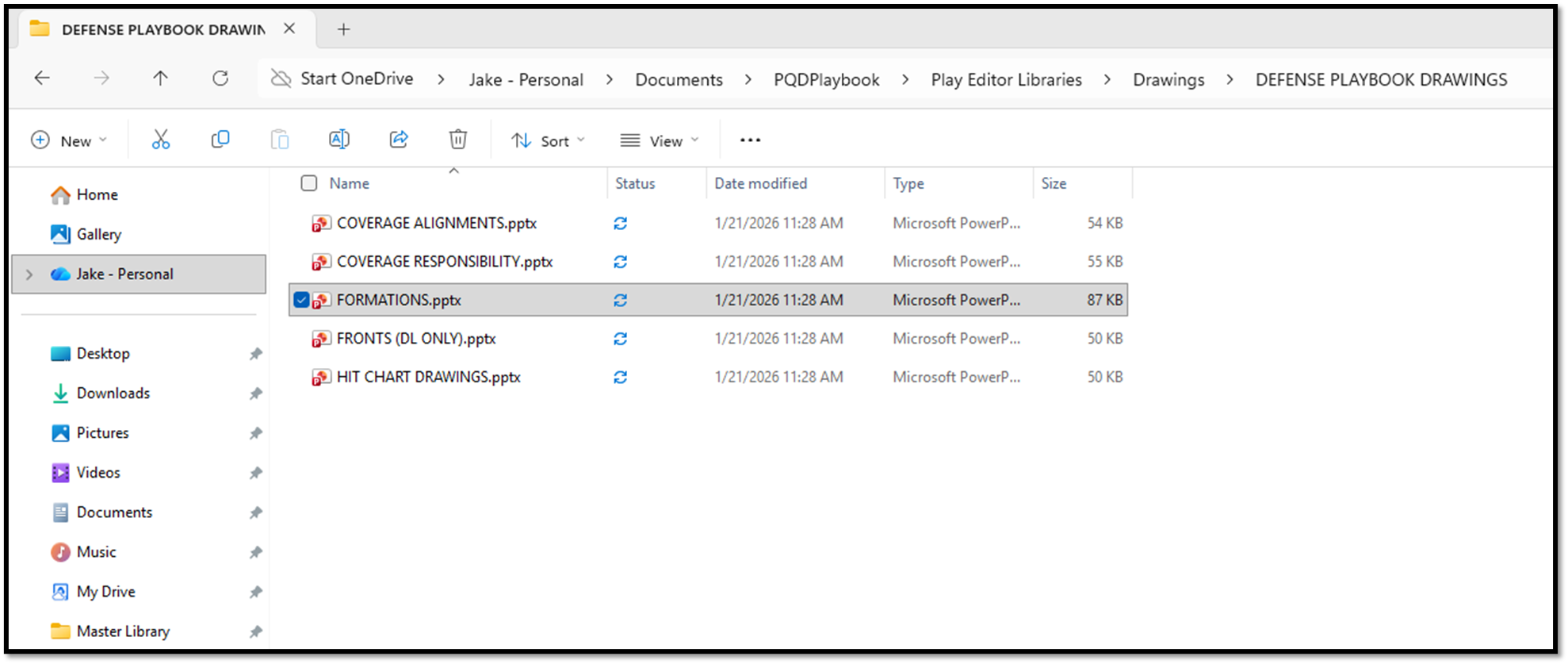
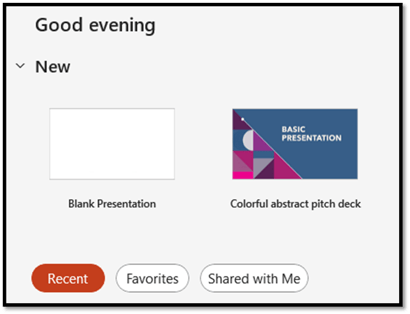
2. Delete the file(s) in this folder and open up Blank Presentation in PowerPoint.
3. Open up the Play Editor.
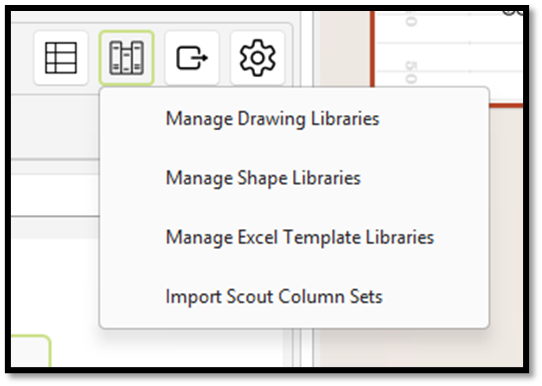
4. Select Manage Drawing Libraries or Manage Shape Libraries in the Libraries icon.
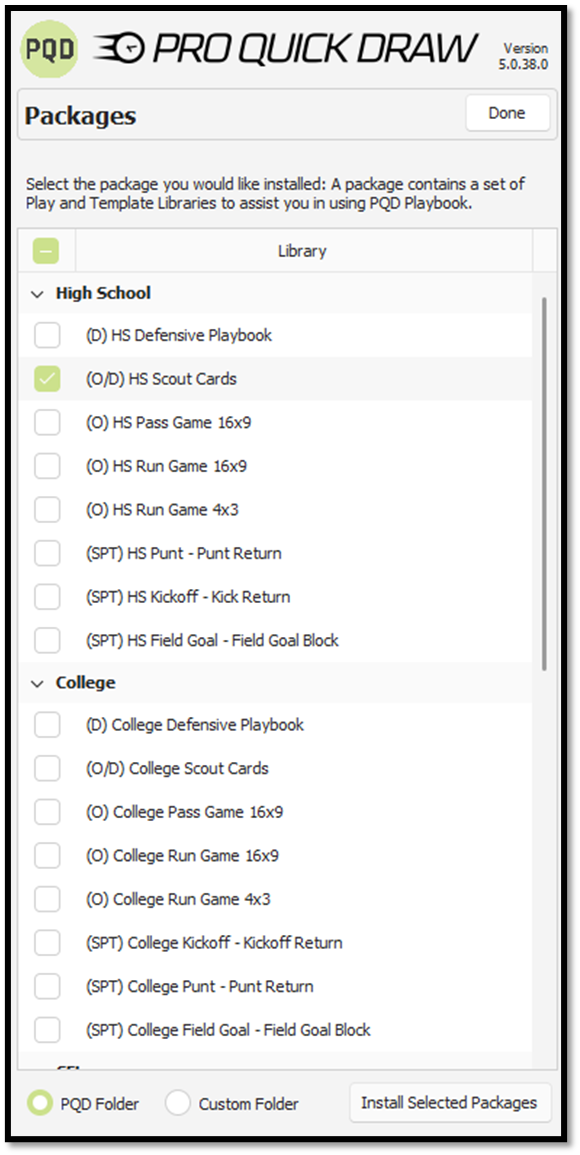
5. Select the Install Packages button.
6. Click the checkbox next to the install package that the files you deleted were from and choose Install Selected Packages.