![Pro Quick Draw Logo_Grey.png]](https://www.proquickdraw.com/hs-fs/hubfs/Marketing%20Photos/Pro%20Quick%20Draw%20Logo_Grey.png?height=40&name=Pro%20Quick%20Draw%20Logo_Grey.png)
What is it?
Your PQD license is what allows you to active PQD and get to work. If you are having trouble activating you may need to use the steps below if you got a new machine or had your machine re-imaged by your IT team.
Why does it matter?
If you dont have access to the PQD Dashboard you will need to reach out to your account owner for a key, click below to see how to find out who your account owner is:
How does it work?
Account Owner
Under the Pro Quick Draw Licensed Users section of the Dashboard Account page select the 3 ellipses next to the user that you want to generate a new key

Select Generate New Key from the menu
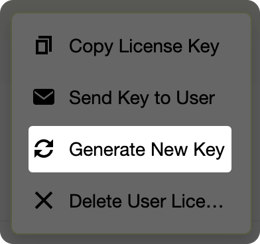
Click Yes on if you want to generate a new key for that user

Now as an admin if you are re-imaging a machine you can simply activate PQD with the new key or if you continue following you can send the new key to the coach via email - to do so you will click on the 3 ellipses next to their user account

Click on Send Key to User from the menu
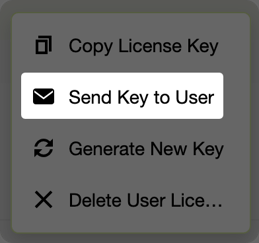
Click Yes to send the key to the user
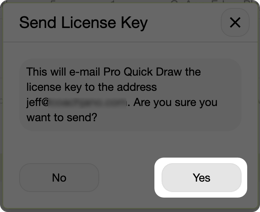
They will receive an email containing the key to activate PQD again
User Self-Service
Once logged into the Dashboard as a coach under the main My License section click on the refresh icon under Key Options

Click Yes to generate the new key
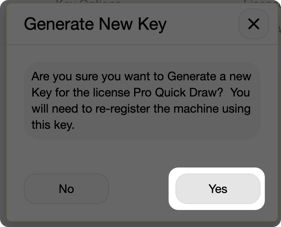
You will then notice the new key has been generated

Who is my account owner?
Within Pro Quick Draw 5.0 you can click on the Support icon
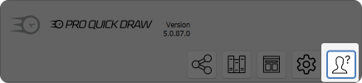
Select License Details
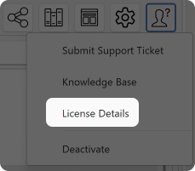
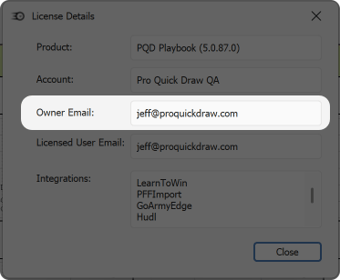
You can then see the email address of the account owner so you can email them asking for a new key