![Pro Quick Draw Logo_Grey.png]](https://www.proquickdraw.com/hs-fs/hubfs/Marketing%20Photos/Pro%20Quick%20Draw%20Logo_Grey.png?height=40&name=Pro%20Quick%20Draw%20Logo_Grey.png)
Sort rules control the order in which plays appear when you open a cutup. Rather than watching plays in the order they occurred, you can configure the system to automatically sort by personnel, formation, backfield, or any combination of columns.
Creating a sort rule
- Open the definition for editing and click Add.
- Select "Sort Rules." Which is located on the top left
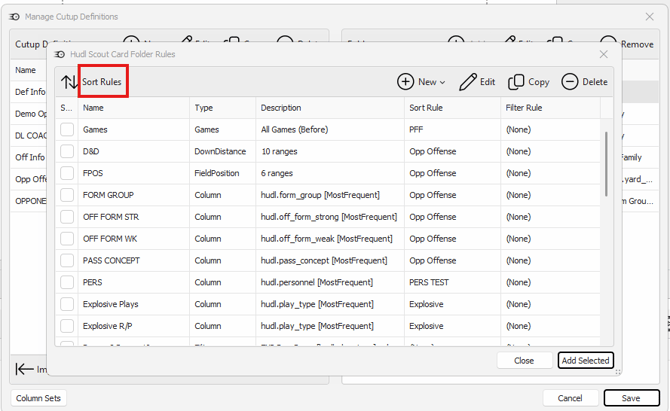
- Click "New" and name the sort rule — for example, DEF STAFF.
- Click "Add" to add sort columns. Choose a column (e.g., Personnel), set the sort order to most frequent, and click OK. Repeat to add additional columns in priority order — for example, Offensive Formation and then Backfield.
- Click "OK" to save the sort rule.
Applying a sort rule to folders
- Edit each folder in your definition and open its settings.
- Select your sort rule in the sort rule field — for example, DEF STAFF — and click OK.
- Repeat for all folders where you want consistent film organization.
- Save and re-generate. Click Save, then click Generate and select Yes to overwrite the existing cutups with the updated sort order.
⭐ Pro tip — Build your sort rule to match how you watch film
Think about the order your staff naturally evaluates plays: personnel first, then formation, then backfield is one common structure. Build your sort rule to mirror that so every cutup opens already organized the way your coaches think about the game.
Next dive deeper into Creating and Managing Definitions