![Pro Quick Draw Logo_Grey.png]](https://www.proquickdraw.com/hs-fs/hubfs/Marketing%20Photos/Pro%20Quick%20Draw%20Logo_Grey.png?height=40&name=Pro%20Quick%20Draw%20Logo_Grey.png)
Filters allow you to restrict which plays are included in a folder's cutups. For example, you could create a filter for pass plays only, then apply it to a wildcard folder that breaks passes down by concept or formation.
Creating a filter
-
Click "Add" → "Filter."
-
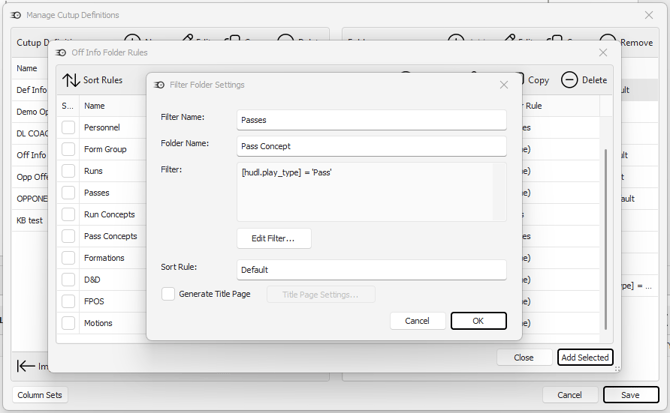
Name the filter — for example, Passes or All Pass.
-
Name the folder (optional) — for example, Play Family.
-
Click "Edit Filter" to open the filter condition builder.
-
Click the "+" sign → "Add Condition."
-
Set the column (yellow), condition (purple), and value. For example: column = Play Type, condition = equals, value = Pass.
-
Click "OK." The filter is saved and can now be applied to any wildcard folder within your definition.
Applying a filter to a wildcard
Once a filter is created, apply it when configuring a wildcard folder. In the wildcard setup, locate the Filter Rule field and select your saved filter, for example, Passes. This restricts the wildcard cutups to only plays that match that filter condition.
💡 Tip — Combine filters and wildcards for deep breakdowns
A filter of "passes only" combined with a wildcard on "Play Family" will produce one cutup per pass concept automatically. You can apply the same approach for red zone tendencies, explosive plays, third down, or any other situation your staff tracks.
Creating an Explosive Play Filter Example
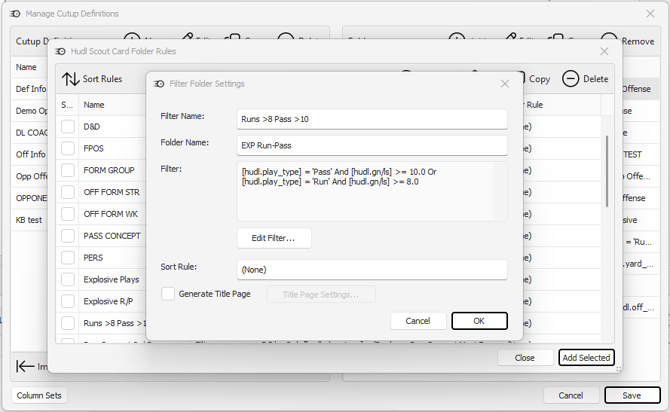
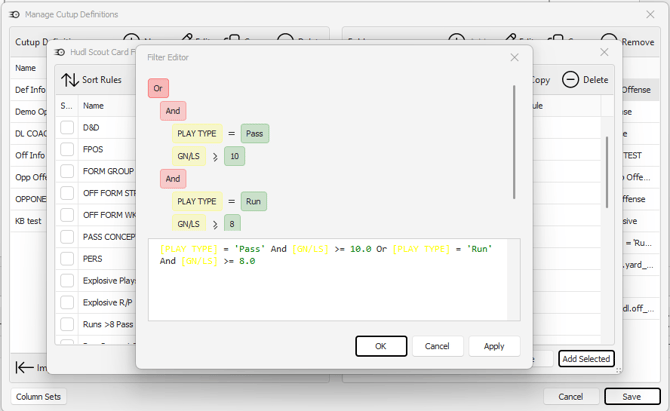
A common cutup coaches would like so see is an Explosive Plays cutup that consists of Runs & Passes. Use the filter settings below to assist with this type of cutup.
For this example, the filter will show the following:
Passes Greater Than or Equal To 10 yards
Runs Greater Than or Equal to 8 Yards