![Pro Quick Draw Logo_Grey.png]](https://www.proquickdraw.com/hs-fs/hubfs/Marketing%20Photos/Pro%20Quick%20Draw%20Logo_Grey.png?height=40&name=Pro%20Quick%20Draw%20Logo_Grey.png)
Overview: What is a definition?
A definition is the blueprint that controls how your cutups are built inside a project. Each definition contains a set of folders, and each folder contains playlists. When you generate a definition, the system automatically creates all of the cutups based on the folder rules you have configured.
Think of a definition as your film breakdown template, you set it up once with the folders and rules that match your staff's workflow, then generate it to produce a fully organized film library.
Definitions are accessed directly from within an open project.
-
Navigate to and open the project you want to work in.
-
Locate the definition box - Find the box with the bullet points to the right of the word Definition in the project interface.
-
The left side of the panel displays your cutup definitions. The right side displays the folders and playlists associated with the selected definition.
Each definition you create will represent a distinct breakdown structure — for example, one for opponent offense and another for opponent defense.
-
Click "New." In the Managed Definitions panel, click the New button. A definition dialog box will appear.
-
Enter a definition name. Type a descriptive name for the definition — for example: Opponent Offense.
-
Select a column set. The Column Set field maps to your Video Software column sets. Select the column set you want this definition to use — for example, Scout Card.
-
Add a sort prefix (recommended). A sort prefix applies a double-digit numbering system in front of your cutups to keep them organized. This is highly recommended.
-
Click "OK." The definition is created. The right side of the screen will now display your folder-building area.
⭐ Pro tip — Always use a sort prefix
Enabling the sort prefix places a double-digit number in front of each cutup name. This keeps your film library in a logical, predictable order and makes it much faster for your staff to navigate during preparation.
Adding folders to a definition
Folders are the core building blocks of a definition. Each folder controls how a group of cutups is organized and built. You can add as many folders as your breakdown requires.
-
Click "Add." On the right side of the Managed Definitions panel, click the Add button to open the folder type menu.
-
Select a folder type by clicking "New". Choose the type of folder you want to create (see Section 5 for a full explanation of each type).
-
Configure the folder settings. Each folder type has its own configuration options. Fill in the required fields — name, column mappings, prefix (if needed), sort order, sort rule, and any filters (if needed).
-
Click "OK." The folder configuration is saved. You will see a checkmark next to the Folder enabled you to add it to your selected definition.
-
Click "Add Selected." Click Add Selected to add the configured folder into your definition. Repeat these steps to build out all of your folders.
-
Click "Save." When all folders are added, click Save to save the full definition before generating.
💡 Tip — Build all folders before generating
Add and save all of your folders before clicking Generate. You can always go back to edit a definition and re-generate, but completing the full folder setup first saves time.
Do this by selecting the folder and clicking Edit.
You can Copy a folder group as well to save time and change necessary column fields.
Folder types explained
The Cutup Generator provides four folder types. Each produces a different kind of cutup structure. There is also a Filter option that lets you restrict a folder's cutups to only plays that match a specific condition (see Section 6).
Games
Creates a folder based on the games in the project. Includes an option to add an all-games playlist that combines every play from all games into a single cutup, positioned either before or after the individual game playlists.
-
Select "New" → "Games."
-
Enable an all-games playlist (optional). Choose whether it appears before or after the individual game playlists.
-
Apply a sort rule if needed, then click OK.
Down & Distance
Generates cutups broken down by down and distance. Uses your down column and distance column, with minimum and maximum distance ranges per situation.
-
Select "New" → "Down and Distance."

-
Name the folder. The default is D&D. Rename it — for example, Down and Distance.
-
Set your down and distance columns. Map the Down column (e.g., DN) and the Distance column to the correct columns in your system.
-
Set a series sequence column (optional). If you track series and play numbers within a series, map the Series Sequence column here. This is particularly useful for coaches who use P&10. A series is the drive of the game
- Series 1, Series 2, Series 3
- Series Sequence is the play within the drive.
- This is an advanced column that you can create within your Video Software Account.
-
Click "Generate Default." This populates a standard set of down-and-distance situations. Edit each situation's name, distance minimum, and distance maximum to match your staff's definitions, then click OK.
💡 Tip — Customize after generating defaults
The "Generate Default" button gives you a starting point out of the box. For example, if your staff defines 2nd and Long as 8+ yards instead of 7+, simply click the situation name to rename it and update the distance minimum accordingly.

Field position
Creates cutups organized by field position using your yard line column. Generates default zones that you can customize to match your staff's definitions.
-
Select "New" → "Field Position."
-
Name the folder — for example, Field Position.
-
Select your field position column — the column that represents yard line in your system.
-
Click "Generate Default" and customize, then click OK.

Wildcard
The wildcard folder type creates a new cutup automatically any time the value of a specified column changes. For example, assigning the Personnel column will produce one cutup for each unique personnel grouping found in the data.
-
Select "New" → "Wildcard."
-
Name the cutup — for example, Personnel, Offensive Formation, or All Run/Pass.
-
Select the column whose data changes should drive the cutup splits — for example, Personnel, Play Type, or Play Family.
-
Set a sort order — for example, most to least frequent — so the most common value appears first.
-
Apply a prefix and filter if needed, then click OK.
⭐ Pro tip — Wildcard is your most powerful tool
You can create a wildcard for nearly any column in your system. Common uses include: personnel groupings, offensive formation, backfield, play type (run/pass), and play family (pass concepts). Each one automatically generates a separate cutup per unique value — no manual creation needed.
Using Filters with Folders
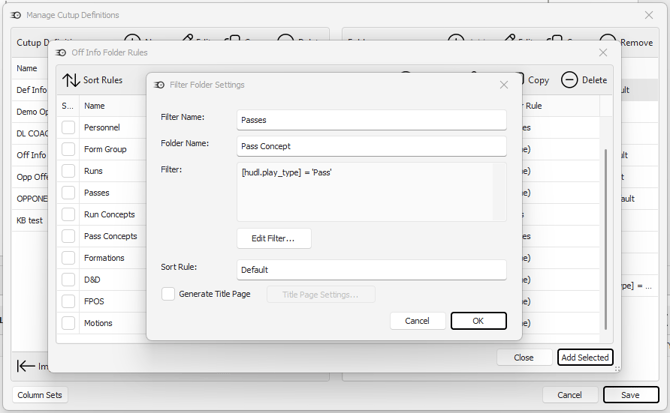
Filters allow you to restrict which plays are included in a folder's cutups. For example, you could create a filter for pass plays only, then apply it to a wildcard folder that breaks passes down by concept or formation.
Creating a filter
-
Click "Add" → "Filter."
-
Name the filter — for example, Passes or All Pass.
-
Name the folder (optional) — for example, Play Family.
-
Click "Edit Filter" to open the filter condition builder.
-
Click the "+" sign → "Add Condition."
-
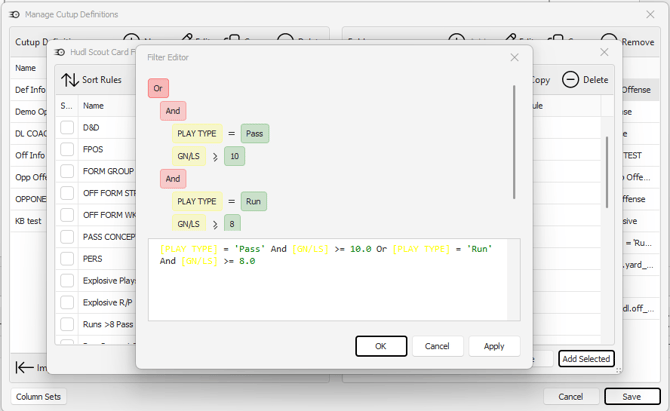
Set the column (yellow), condition (purple), and value. For example: column = Play Type, condition = equals, value = Pass.
-
Click "OK." The filter is saved and can now be applied to any wildcard folder within your definition.
Applying a filter to a wildcard
Once a filter is created, apply it when configuring a wildcard folder. In the wildcard setup, locate the Filter Rule field and select your saved filter — for example, Passes. This restricts the wildcard cutups to only plays that match that filter condition.
💡 Tip — Combine filters and wildcards for deep breakdowns
A filter of "passes only" combined with a wildcard on "Play Family" will produce one cutup per pass concept — automatically. You can apply the same approach for red zone tendencies, explosive plays, third down, or any other situation your staff tracks.
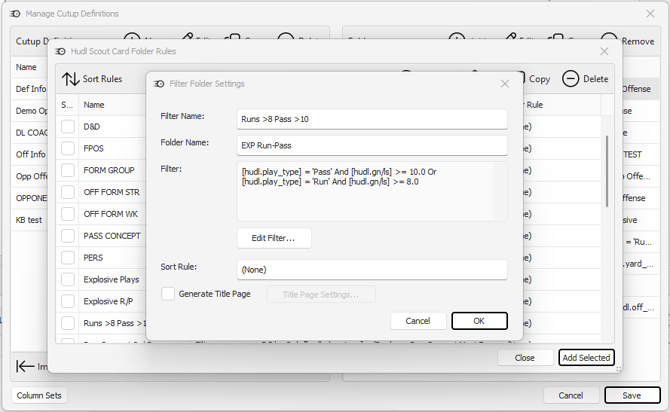
Creating an Explosive Play Filter Example
Ad Hoc
This folder section allows you to create new folders and subfolders that contain playlists. The playlist have the ability to add media types to the playlist such as a PowerPoint file.
A scenario to use this would be to drag and drop cutups from other playlists in order to build a new specific cutup you want manually. You may create a folder for Monday's practice with specific plays for the unit meeting. By having these folders with playlists you can also add PowerPoint or Visio files to be uploaded as slides within your video software.
