![Pro Quick Draw Logo_Grey.png]](https://www.proquickdraw.com/hs-fs/hubfs/Marketing%20Photos/Pro%20Quick%20Draw%20Logo_Grey.png?height=40&name=Pro%20Quick%20Draw%20Logo_Grey.png)
Pro Quick Draw Playbook
We’ve rebranded our flagship software to PQD Playbook to align with our expanding suite of products and integrations, including Catapult, QwikCut, Hudl, GoArmy Edge, and Ethos (formerly Learn To Win). This update paves the way for the launch of our new offerings, which include:
Updates for the 5.0 PQD Playbook product include:
- Installation Packages: These tailored starter kits provide curated Drawings & Shapes designed to streamline setup based on your specific coaching workflow. Select the option that aligns best with your needs:
- Defensive Playbook
- Scout Cards for Offense & Defense
- Drawing the Run Game in a 4x3 Slide (NFL 6 Box Style)
- Drawing the Run Game in a 16x9 Slide
- Drawing the Pass Game
- All Special Teams
- Choose one of our existing packages to gain access:
- 100's of Play Editor Drawings & Shapes
- Templates that match the drawing style
- Updated User Interface & Custom Branding
- New Master Library Folder Structure
- New tools to manage libraries for plays & templates
- New Advanced Play Selection Tool
- Dropdown Menu for multiple play & template libraries
- Add Shortcut from a Play Library Folder and add to the dropdown
- Hover Preview Window over a play within the library
- Duplicate Play to instantly copy an existing drawing and place the new version into the next available slot
- Checkbox to enable "Always Open PQD Playbook"
- New Template Editor Settings & Features
- "Save As" is now "Save Copy"
- Edit & Add a drawing from the Play Library
- Improved Search functionality & speed
Play Editor Upgrades
- Export Drawings from the Play Editor to create individual files within Play Library Folders
- Insert an existing play drawing from your play library directly onto a slide as an editable drawing—outside of the template structure—so you can modify as needed.
- Dropdown Menu to quickly change Drawing & Shape Libraries
- Auto Name Slides when adding a Drawing
- Reorganizing Library Order with Drag & Drop
- New Blocking Shapes that include a line as the endcap for blocks rather than dots
- Update or Add a Play Editor Drawing to a slide
- Ungroup shapes when adding to a drawing
- Match player with white fill will automatically add a black line by default
- Right Click a shape and set the line or freeform settings as default
Updated UI & Branding
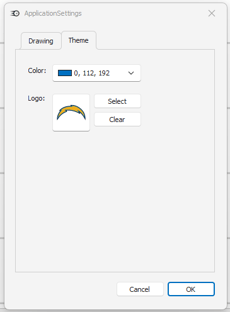
The updated product now features enhanced customization options, allowing users to incorporate their team or school logos directly into the platform for a more personalized and professional look.
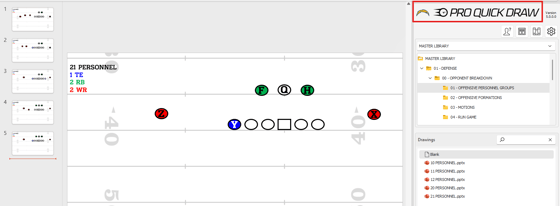
Updated Buttons to access library management, template editor, settings & customer support.
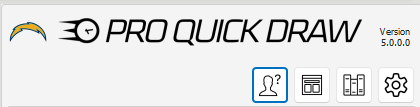
Managing Libraries (Book Shelf Button)
This will enable users to access and manage their Play Library Folders, Template Library Folders and installation packages.
Managing Play Libraries